
TL1.
Watch time
take shape.
Prepare your camera, choose a time-lapse schedule and transfer your finished footage.
Download TL1 manual ↗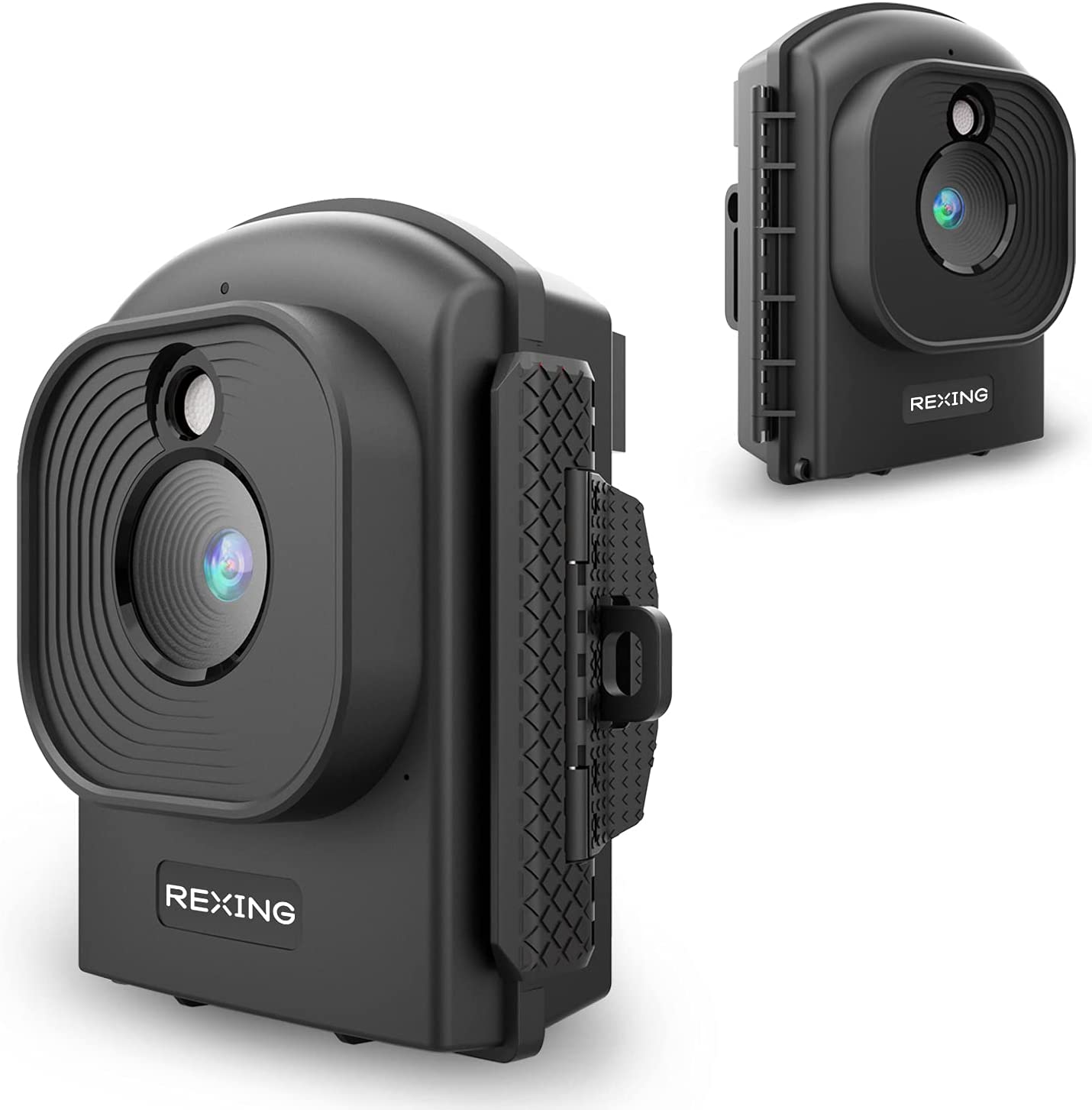
Prepare the camera for your project.
Install 12 AA batteries
Use 12 pieces of 1.5V AA batteries: 4 in the left compartment and 8 in the right. Follow the polarity markings and close the cover.
Prepare the memory card
The TL1 manual supports Class 10 or faster microSD up to 512GB. Insert it according to the slot marking and format it in the camera before recording. Back up files first.
Set time and framing
Hold Power to turn on. Use MODE to choose Photo or Video, then MENU for settings. Set Time & Date and frame the subject before starting a long session.
Choose what to capture and when.
Time-lapse Photo / Video
In Photo or Video mode, open MENU and select the Mode setting. Time-lapse Photo combines interval photos into an AVI video; Time-lapse Video combines short video captures.
Timing Photo / Video
These modes capture photos or short clips on a schedule. The guide allows intervals from 3 seconds to 24 hours; video clip duration is 3 to 120 seconds.
Set days and intervals
Use OK to enter the schedule, MODE to move between fields and Up/Down to choose values. Check the selected days and recording-time windows.
Manual time-lapse
Select Photo or Video with MODE. Press Up/MTL to enter manual time-lapse, use OK to capture/start, then press Up/MTL again to stop that mode.
Check loop recording
With Loop Recording on, the oldest files are replaced as the card fills. Keep it off if you need to preserve every file and check the remaining space regularly.
Battery life varies
The manual’s long-duration example assumes one photo every 5 minutes. Shorter intervals, video capture and fill-light use can change power consumption.
Review the result. Keep a copy.
Play on the camera
Press MODE to enter Playback. Use Up/Down to browse. Press OK to play or pause a video and MENU to stop playback.
Use a card reader
Stop shooting and power off before removing the microSD card. Insert it into a computer card reader and copy the photo or video files.
Connect by USB
Connect the supplied USB cable to a computer and turn on the camera. The screen displays MSDC; open the removable disk and copy files from DCIM.
Make the next session count.
The camera is not taking scheduled shots
Check the clock, selected weekdays, recording-time windows, interval and remaining card space. Return to the main screen, briefly press Power and confirm the countdown begins.
The memory card is full
Copy important files to a computer. With Loop Recording off, recording stops when storage fills; with it on, older files can be overwritten. Format only after backup.
Which button opens the settings?
Use MODE to choose Photo or Video, then MENU. Browse with Up/Down and confirm with OK. This is TL1’s own control layout.
How should I clean or store the camera?
Disconnect the power/remove batteries before cleaning. Use a dry cloth on the exterior and a soft lint-free cloth on the lens. Protect against dust and moisture and remove batteries for long storage.
Share your schedule
Send the TL1 model, shooting mode, interval, recording days/windows and a photo of the settings screen when requesting help.
The right guide for your TL1.
TL1 manual
Setup, scheduling & playback
Official TL1 guide · PDF ↗
Warranty information
Review warranty and return information →
Find another model
Search all product support →
Still need a hand?
Contact Rexing with your TL1 model and a photo of the issue.