
RoadMate
CPDuo.
Connect & record.
Set up your portable touchscreen, connect your phone and keep the recordings you need.
Download user manual ↗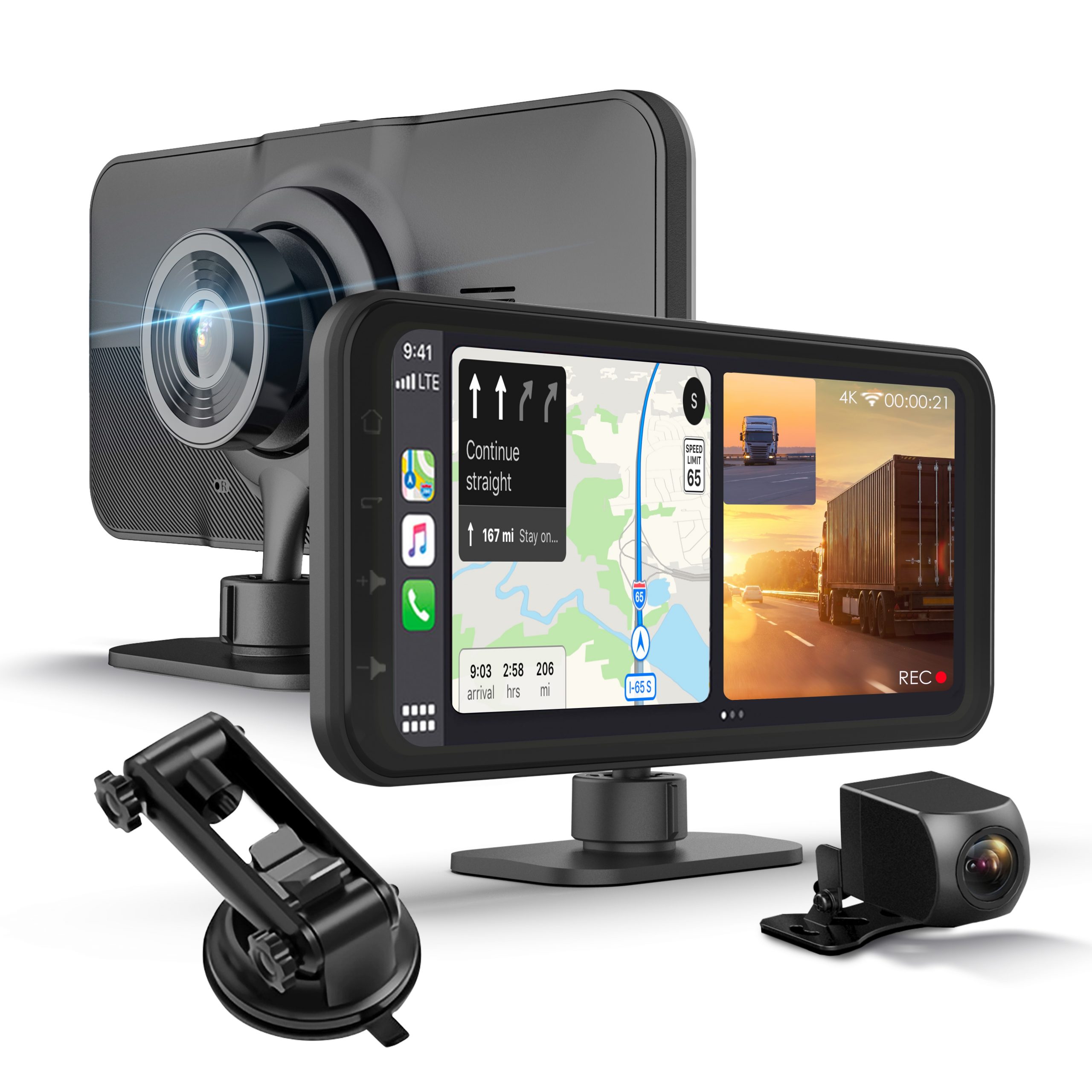
Mount securely. Power correctly.
Choose the mounting position
Clean and dry the dashboard or windshield. Fit the supplied mount without obstructing your view or vehicle controls.
Connect the rear camera
Follow the guide’s camera and extension-cable diagram. Secure loose cables and keep them clear of airbags and moving parts.
Use the supplied charger
Connect its Type-C end to the display and the cigarette-lighter plug to the vehicle socket. Test the front and rear views before driving.
Your phone. A larger view.
Apple CarPlay
Enable Bluetooth and Wi-Fi on your iPhone. Pair with the display’s Bluetooth name, shown in the guide as T86-XXXXXX, and accept Use CarPlay when prompted.
Android Auto
Enable Bluetooth and Wi-Fi on a compatible Android phone. Pair with the display’s Bluetooth name and complete the phone’s connection prompts.
Select audio output
Open Audio Output and choose the available speaker, CarPlay/Auto, FM or AUX option. For FM, match the display and vehicle radio to the same clear frequency.
Prepare the card. Save what matters.
Insert and format
Use a 32–256GB microSD card. The installation guide specifies Class 10 / UHS-3 or higher. Switch power off before inserting or removing it. Back up files, stop recording and open Settings → Format. Formatting erases the card.
Review on the display
Open Playback to view video or photos. Use its controls to play, delete, lock or unlock files. Copy important clips to a separate device.
Connect for video access
Open Wi-Fi Video, then use its QR code to get the indicated app. Join the displayed RTSP-XXXXXX network using the password shown by the display. Follow the app connection prompts.
A clearer next step.
CarPlay or Android Auto will not connect
Check Wi-Fi and Bluetooth, allow the first connection time to finish, then restart the phone if needed. For CarPlay, remove the old vehicle pairing in iPhone Settings → General → CarPlay and reconnect. For Android Auto, update the relevant apps and disable VPN while testing.
The rear camera is blank or has abnormal colors
Check the rear-camera connection with power off. Use the matching camera and select its correct Camera Format in Settings; an incompatible format can distort the image.
The display goes dark
A screen saver can turn the screen off. Press Power to wake it. If the unit has no power, check the supplied charger, vehicle outlet and charger fuse before contacting support.
Find your firmware version
Open Settings → Firmware Version. Send that version, your model label and a photo or short video of the issue to Rexing support.
The guide for your RoadMate CPDuo.
User manual
RoadMate CPDuo
REV122023 · PDF ↗
Warranty information
Review warranty and return information →
Find another model
Search all product support →
Still need a hand?
Contact Rexing with your RoadMate CPDuo model and firmware version.