
01
Prepare the card
Use a Class 10 microSD card, 32–256GB. Back up important clips; format in the camera before first use.
Carrito
Su carrito está vacío
Set up your mirror camera, find your footage and get help with the right model resources.
Download M3 guide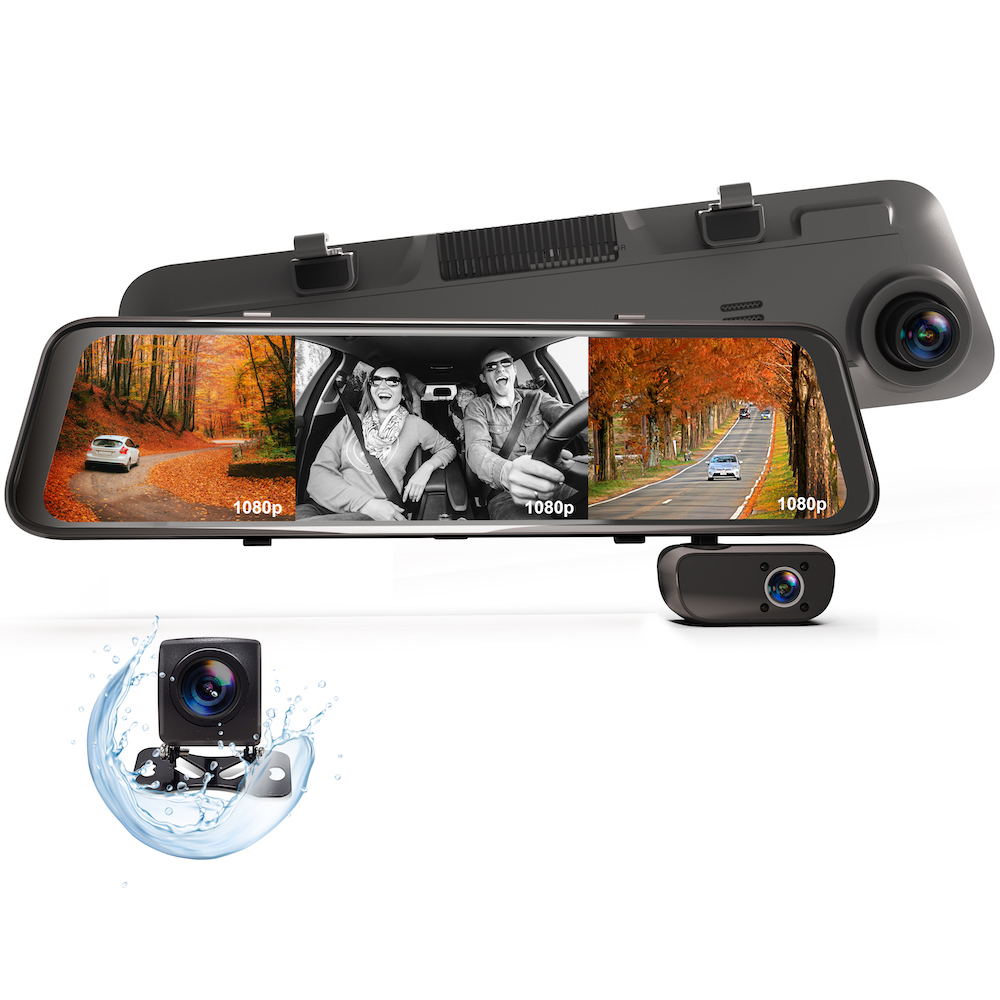
Set up while parked. Keep the camera and cables clear of your driving view and vehicle safety equipment.
Use a Class 10 microSD card, 32–256GB. Back up important clips; format in the camera before first use.
Secure the mirror, connect the rear camera and GPS module, then check every camera view.
M3 uses a supercapacitor and needs external power. Use its Rexing-approved vehicle charger.
A dark display does not by itself confirm that the camera has stopped recording. Check power and recording status before troubleshooting.
Swipe left or right between Front, Rear, Cabin and All. Swipe up or down to adjust the visible range.
A short power-button press toggles the screen; hold for three seconds to switch the device on or off.
Stop recording before opening Settings. Confirm changes, then check that recording resumes.
Identify your accessory before changing settings. Parking recording depends on the power available to the camera.
Describe the behavior you need and share the kit label with support. Do not apply another model’s wiring or parking instructions to your M3.
Confirm the exact kit firstThe manual specifies the separate Rexing Intelligent Hardwire Kit, UPC 810046603178. With that kit, turn the camera’s Parking Mode off.
Kit required • Sold separatelyCheck the kit’s power supply and battery-protection indicator, if present. If the kit cuts power at its low-voltage threshold, the camera cannot record until power is restored. Ask support to verify your kit and settings rather than bypassing battery protection.
Include your model label, firmware version and a short description of when the issue occurs.
Check the vehicle outlet, power cable and connector seating while parked. Distinguish a sleeping display from a camera without power. If the problem continues, send support a short video of the startup behavior.
Save accessible footage first. Record the exact error and card brand, capacity and age. Test with a suitable replacement if available. Formatting deletes recordings, so back up files before trying it.
Use the rear-camera horizontal and vertical flip settings. Recheck orientation while parked.
Use only firmware confirmed for your exact model and hardware version. A similar name or appearance is not enough. Send support photos of the camera label and firmware screen before updating.
Have your model, firmware, card and power-kit details ready.
Model reference: Rexing M3 User Manual, revision December 2023. Follow the guide for your exact hardware and accessories.