
Four views.
One clear start.
Set up your L4, prepare the memory card, connect Rexing Connect, and check every camera view before your next drive.
Read the L4 quick start guide ↗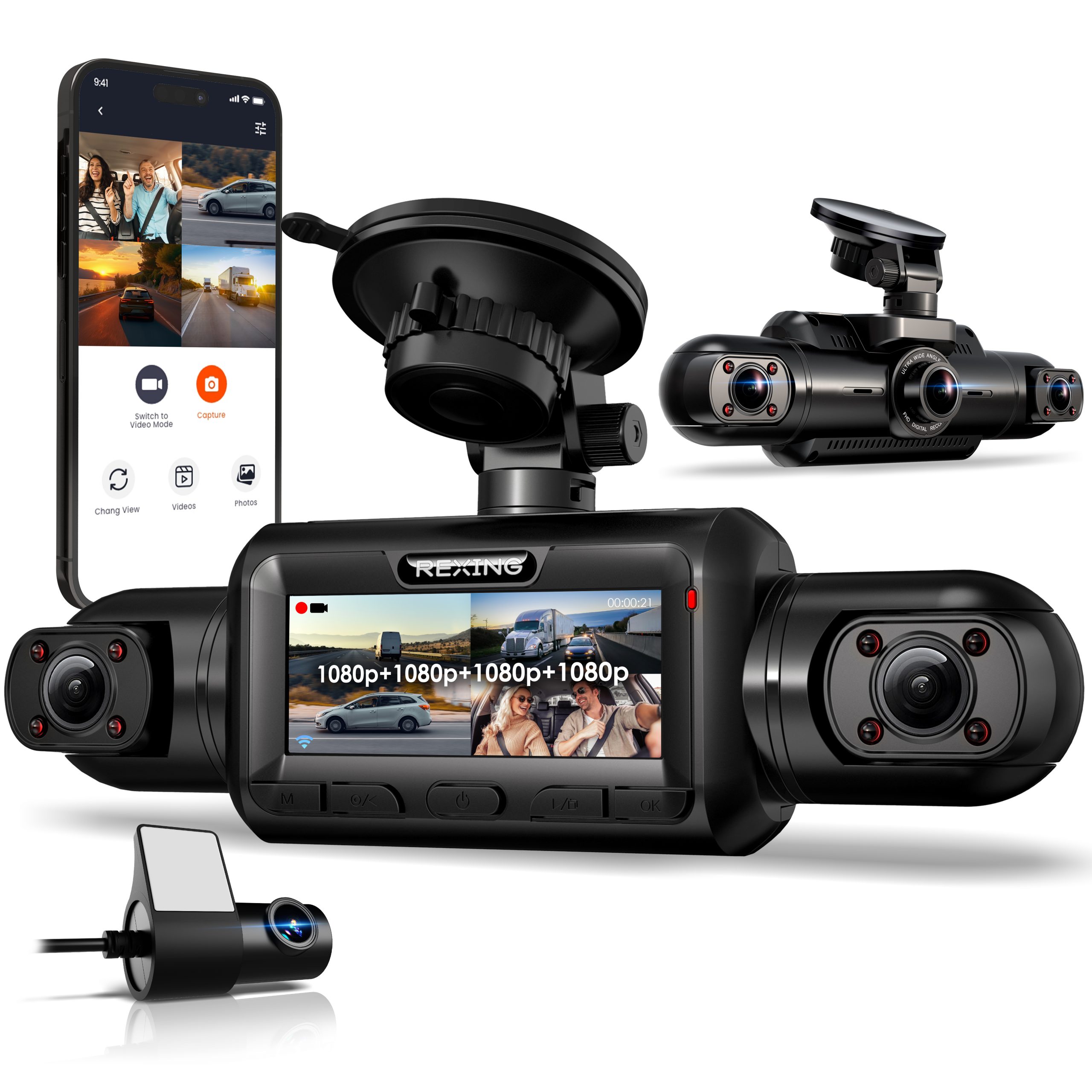
Make the first recording count.
This page follows the L4 guide, revision September 17, 2024. Check the model label before downloading; L4-2K uses a separate guide.
Position and connect.
Clean and secure the suction mount according to the guide, then attach the L4. Connect the rear camera to its dedicated port. Route cables clear of airbags, moving parts and your view of the road.
Use the right microSD card.
The guide specifies Class 10 / UHS-3 (U3) or higher, up to 256GB. Turn the camera off before inserting or removing the card.
Use Type-C power.
Connect the supplied car power equipment to a 12V vehicle outlet and the camera’s Type-C port. The L4 starts recording automatically when powered.
Format in the camera.
- Back up important footage.Formatting erases the memory card.
- Stop recording.Confirm the recording indicator has stopped before opening settings.
- Press MENU twice.Use UP/DOWN to find Format in the setup settings.
- Confirm with OK.After formatting, restart recording and check the saved clips.
Your recordings,
on your phone.
- Enable L4 Wi-Fi.With the camera powered on, hold OK to display its Wi-Fi network name and password.
- Join the displayed network.Open your phone’s Wi-Fi settings and select the exact network shown by your L4. Enter its displayed password.
- Stay on the camera network.If your phone reports no internet, keep the Wi-Fi connection. The camera network is used for the local connection.
- Open Rexing Connect.Tap Connect to access live view and view or download recordings.
Find the clip.
Review the route.
Stop recording, hold MENU and switch to Playback. Choose the clip with UP/DOWN and press OK to play. OK pauses; UP rewinds and DOWN fast-forwards.
Power off before removing the card. Use a card reader to copy and play your recordings. Preserve important files before the next loop-recording session.
Check for an active GPS icon before expecting speed and location data. Use a supported GPS video player to review that data in recorded clips.
Start with compatible power.
Parking recording requires a compatible hardwire kit and the correct camera settings.
Fit the matching kit.
The L4 guide lists a Rexing Type-C GPS Smart Hardwire Kit or Type-C Smart Hardwire Kit, sold separately. Follow the kit’s installation instructions and confirm ignition-off behavior.
Compatible Type-C kit requiredSet Gravity Sensing.
The guide recommends High sensitivity for parking event detection. For ordinary driving when parking monitoring is not used, it recommends Low to reduce unnecessary locked files.
Review locked files regularlyDo not enable Parking Monitor without the required kit.
The guide warns this can cause malfunction. If parking recording stops, check the installation and vehicle battery supply. Where low-voltage protection has cut power, parking recording cannot continue until power is restored under the kit’s recovery conditions.
A clear next step.
Start with the model label, memory card, power connection and the message shown on the camera.
Which memory card should I use?
The L4 guide specifies a microSD card rated Class 10 / UHS-3 (U3) or higher, up to 256GB. Choose a card intended for repeated dash-cam recording, then format it in the L4 before first use.
How do I format the card?
Back up important recordings first. With a card inserted and the camera powered on, stop recording, press MENU twice, navigate to Format with UP/DOWN, and confirm with OK. Formatting erases the card. Power off before removing or inserting it.
How long will a memory card record?
Recording time depends on capacity, active channels, video settings and locked files. Loop recording replaces the oldest unlocked clips. There is no single recording-duration estimate that applies to every L4 setup.
Why is the card full even with loop recording enabled?
Locked event files are protected from normal loop overwrite. Back up important footage and review or clear unneeded locked files. The L4 guide recommends Low Gravity Sensing for normal driving when parking monitoring is not used.
Which phone app does L4 use?
Use Rexing Connect. First enable camera Wi-Fi by holding OK, connect your phone to the network shown on the camera screen, then open the app and tap Connect. Stay connected if the phone says this Wi-Fi has no internet.
How do I play recordings on the camera?
Stop recording, hold MENU and switch to Playback mode. Use UP/DOWN to choose the recording and OK to play or pause. The guide lists UP for rewind and DOWN for fast-forward during playback.
Can I view recordings on a computer?
Power the camera off, remove the microSD card and use a compatible card reader. Copy important files before editing or formatting. Use the GPS video player for supported recordings with GPS data.
What power connection does L4 use?
The L4 guide identifies a Type-C power port. Use the supplied car power equipment or a compatible L4 hardwire kit. Check the guide for your exact model; L4-2K has a separate support entry.
What is needed for parking monitoring?
The guide specifies a Rexing Type-C GPS Smart Hardwire Kit or Type-C Smart Hardwire Kit, sold separately. It warns against enabling Parking Monitor without a compatible kit. Verify the installation and follow the matching kit instructions.
Why is GPS still searching?
Confirm that the correct GPS-capable charger or GPS smart hardwire equipment is connected as specified in the guide. Test with a clear view of the sky and check for the active GPS icon. If the icon never becomes active, contact support with the camera and power-accessory labels.
Your L4 reference desk.
Need help with your L4?
Send your model label, memory-card details, power-accessory label and a description of the issue.