
Set it up.
See what visits.
Prepare your H1 for the field, fine-tune motion detection and find the photos and videos from your next visit.
Download H1 manual ↗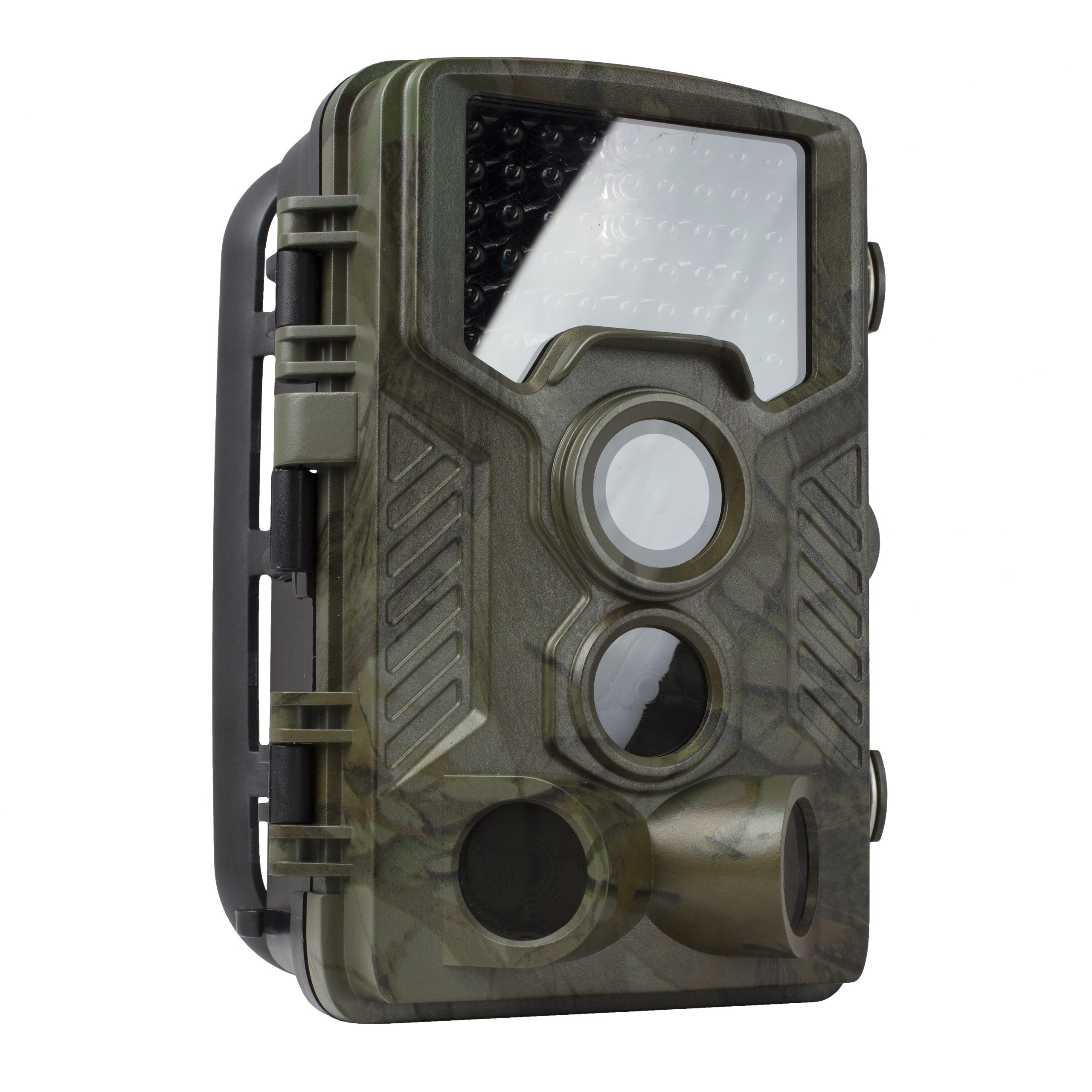
Ready before you head out.
This guide is for the original H1. Check your model label before following instructions for H1 Blackhawk or another trail camera.
Load the batteries.
With the switch OFF, install eight 1.5V AA / LR6 batteries following the polarity markings. Use a matching set of fresh batteries; do not mix old and new batteries or different types.
Insert the memory card.
Use a microSD / TF card up to 32GB. The manual specifies Class 6 or above. Insert and remove cards only with the camera OFF. The camera needs a card to capture images.
Configure in TEST.
Move the switch to TEST and press MENU. Set date, time and capture mode. Use UP / DOWN to browse, LEFT / RIGHT to change settings and OK to save. Press MENU to exit.
Format the card in the H1.
Back up important files first. In TEST mode, press MENU and select Format memory card, then confirm with OK. Formatting erases the card. Use the H1 controls rather than the MENU/MIC instructions used by some dash cameras.
TEST sets it up.
ON puts it to work.
The display going dark in ON mode is expected. It does not mean the camera has stopped monitoring.
Change cards and batteries.
Use OFF before inserting or removing a memory card, changing batteries or transporting the camera.
Settings, aiming and playback.
The LCD is on. Adjust settings, test the detection zone, take a manual test capture or review stored photos and videos.
Leave the camera to capture.
The LCD is off. After the startup indicator period, the camera works according to the selected capture settings. The manual describes a red indicator blinking for about 15 seconds after switching ON.
Match capture to your location.
Choose Photo, Video or Photo + Video in TEST mode. Aim the camera and check the detection area before leaving it unattended.
Motion-triggered capture.
PIR sensors detect movement-related heat changes. Use the sensitivity setting to suit the environment and turn off the side sensors when surrounding activity causes unwanted triggers.
Shot lag sets a pause between triggered recordings. During that interval, the camera does not record another event.
Time-lapse capture.
Time lapse captures at your selected interval instead of waiting for motion. The manual states that enabling this mode disables the PIR sensor.
Target recording time limits operation to a chosen daily time window. Outside that window, the camera will not capture images.
Aim it, then walk-test it.
- Mount securely.The manual suggests a tree or stable object about 1–2 m high. Choose the angle for your intended subject.
- Test in TEST mode.Walk across the target area. Blue indicates a side sensor detection; red indicates the front sensor.
- Reduce unwanted triggers.Avoid direct sun, moving branches and heat sources. Adjust the angle and sensitivity, then switch ON and secure the cover.
Bring your discoveries home.
Copy important captures before deleting files or formatting. The manual states that a full card stops further capture.
TEST → REPLAY.
Move to TEST and press REPLAY. Browse with UP / DOWN; press OK to play or pause a video. Press REPLAY again to exit.
Copy from the card.
Switch OFF before removing the memory card. Connect it to your computer with a compatible card reader and copy the photos and videos to a separate folder.
Open the DCIM folder.
The manual also supports connecting the camera to a computer with the supplied USB cable. It appears as mass storage; your captures are in the DCIM folder.
Check the essentials first.
Power, card space and switch position solve many missed-capture problems.
Ask Rexing support →Why is the screen off when the switch is ON?
This is normal. ON is the unattended capture mode and the LCD is off. Use TEST to change settings and review recordings. When returning from ON to TEST, move the switch fully to OFF first, then to TEST.
Why is the H1 not taking pictures?
Check that the switch is in ON, batteries have power and a compatible card is inserted with available space. Check Target recording time and Time lapse: a schedule can limit recording hours, and time-lapse capture replaces PIR motion triggering. The manual states that recording stops when the card is full.
Which memory card does H1 support?
Use a microSD / TF card up to 32GB. The specifications list Class 6 or above; a Class 10 card meets that speed requirement. Switch OFF before inserting or removing the card and format it in the camera after backing up files.
Why are there empty photos or too many triggers?
Avoid moving branches, direct sun, heat sources and views over water. Reposition the camera, reduce motion-sensor sensitivity where needed and consider disabling the side sensors if nearby movement keeps triggering them. Test the detection area before leaving the camera.
Why are night photos dark or video clips too short?
Check battery condition first. The manual explains that the infrared flash can stop working as batteries run low, and the camera may shorten video clips to conserve power. Keep subjects within the supported flash range, up to about 20 m under suitable conditions.
Why does the detection light stop flashing?
The motion indicator helps with alignment in TEST mode. During normal unattended use, it does not keep flashing for each capture. After switching ON, the manual describes a red indicator blinking for about 15 seconds before operation.
Why are my settings not saved?
Press OK to save a changed setting, then MENU to exit. Confirm date and time in TEST mode before moving the switch to ON.
Can I use a larger card or instructions for H1 Blackhawk?
This page follows the original H1 manual, which specifies cards up to 32GB. H1 Blackhawk is a separate model entry. Match the exact model on your camera before using another model’s manual or firmware.
I forgot the camera password. What should I do?
Contact Rexing support with your exact H1 model and purchase details. The original manual refers to a supplier-provided recovery file; do not install an unverified file or firmware from another camera model.
The right resources for H1.
Still need a hand?
Share your exact model, card capacity, battery type and switch position.