
iPhone + Apple CarPlay
Use an iPhone compatible with CarPlay and a vehicle with built-in wired Apple CarPlay. The CPW-42 manual lists iOS 10 or later.
Confirm wired CarPlay works firstCarrito
Su carrito está vacío
Set up wireless CarPlay or Android Auto using your car’s existing wired connection. One compact adapter, with a clear path for each phone.
Download user manual ↗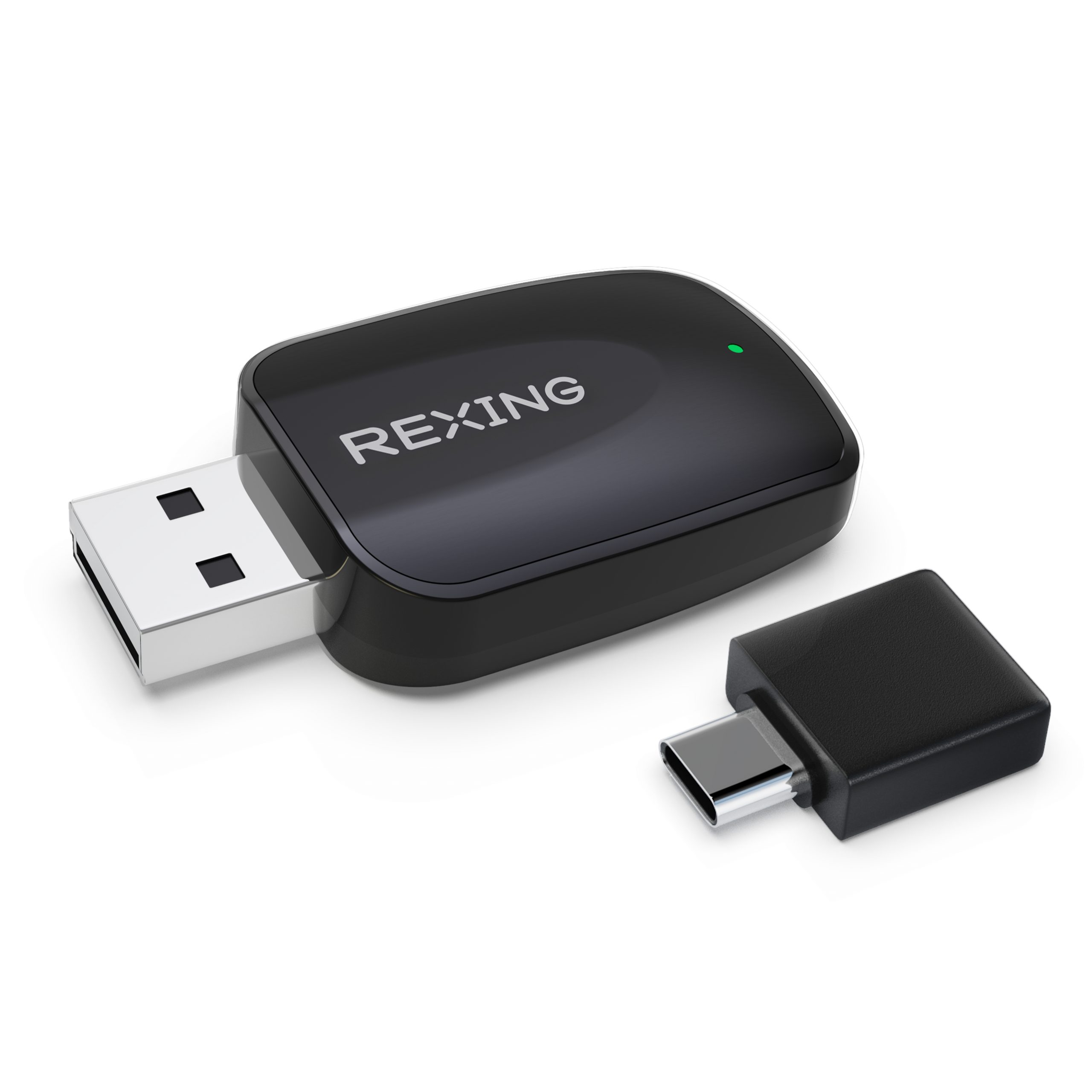
CPW-42 converts your vehicle’s existing wired CarPlay or Android Auto connection to wireless. It does not add either system to a vehicle that lacks it.
Use an iPhone compatible with CarPlay and a vehicle with built-in wired Apple CarPlay. The CPW-42 manual lists iOS 10 or later.
Confirm wired CarPlay works firstUse a phone that supports wireless Android Auto and a vehicle with built-in wired Android Auto. Phone model, operating system, and wireless capability all affect compatibility.
Confirm wired Android Auto works firstComplete setup while parked. Use the vehicle’s data port for wired CarPlay or Android Auto.
Plug the CPW-42 directly into the USB-A port that supports wired CarPlay or Android Auto. Make sure the connection is fully seated.
Attach the supplied USB-A-to-USB-C adapter, then connect it to the vehicle’s compatible USB-C data port.
The blue indicator flashes at startup. Keep the adapter connected, then enable both Wi-Fi and Bluetooth on your phone.
Disconnect the previously connected phone before pairing a different one. The last connected phone has first priority.
Look at the flashing pattern to distinguish startup, connection, and update activity.
The manual recommends firmware updates when you are experiencing a problem. Contact Rexing for the correct CPW-42 update and instructions before starting.
The adapter is powering on.
A connection is in progress.
The connection is established.
A firmware update is in progress.
The update has completed successfully.
Check wired compatibility, the vehicle’s USB port, and phone pairing in that order.
Ask Rexing support →It converts an existing wired system to wireless. Your car must already support the system you want to use: CarPlay for iPhone or Android Auto for Android. It does not turn a CarPlay-only system into Android Auto, or the reverse.
Check the selected USB port. It must support wired CarPlay or Android Auto, not just charging. Test the phone directly with a data cable in the same vehicle port. Then reconnect the adapter, enable Wi-Fi and Bluetooth, and follow the pairing steps.
The manual says some Android Auto-only systems may not display the adapter’s connection screen. Keep the adapter powered and use your phone’s Bluetooth settings to pair with its Auto-xxxx device. Follow the Android Auto prompts on the phone.
Disconnect the previously paired phone before starting with another one. Enable Wi-Fi and Bluetooth on the new phone, choose the adapter in its Bluetooth settings, and complete the CarPlay or Android Auto prompts.
This is part of the iPhone connection guidance shown in the CPW-42 manual. Open Settings → Bluetooth, select the information button beside the saved car connection, and choose Forget This Device. Then pair the iPhone with the adapter’s Auto-xxxx device.
No. The phone must support wireless Android Auto, and the vehicle must support wired Android Auto. An Android version number alone does not confirm wireless compatibility. If unsure, send support your phone model, Android version, and vehicle details before troubleshooting further.
For a compatible USB-A vehicle port, plug the adapter in directly. For a compatible USB-C port, use the included USB-A-to-USB-C adapter. Always use the port intended for wired CarPlay or Android Auto.
Include CPW-42 / Best Buy version, your vehicle make, model and year, phone model and operating-system version, indicator-light behavior, and whether a direct wired connection works. Describe the last successful step in pairing.
We can help with compatibility, pairing, and model-specific updates.
Based on the CPW-42 manual, revision 05012025, and the official Best Buy version support page. Compatibility varies by vehicle and phone.