
STEP 01
Use the CarPlay USB port
Connect the adapter’s USB-C port to the vehicle using the supplied USB-C-to-A or USB-C-to-C cable. Use the same vehicle port that works for wired Apple CarPlay—not a charging-only port.
Carrito
Su carrito está vacío
Turn your car’s existing wired Apple CarPlay into a wireless connection. Start with compatibility, then get your iPhone paired.
Download user manual ↗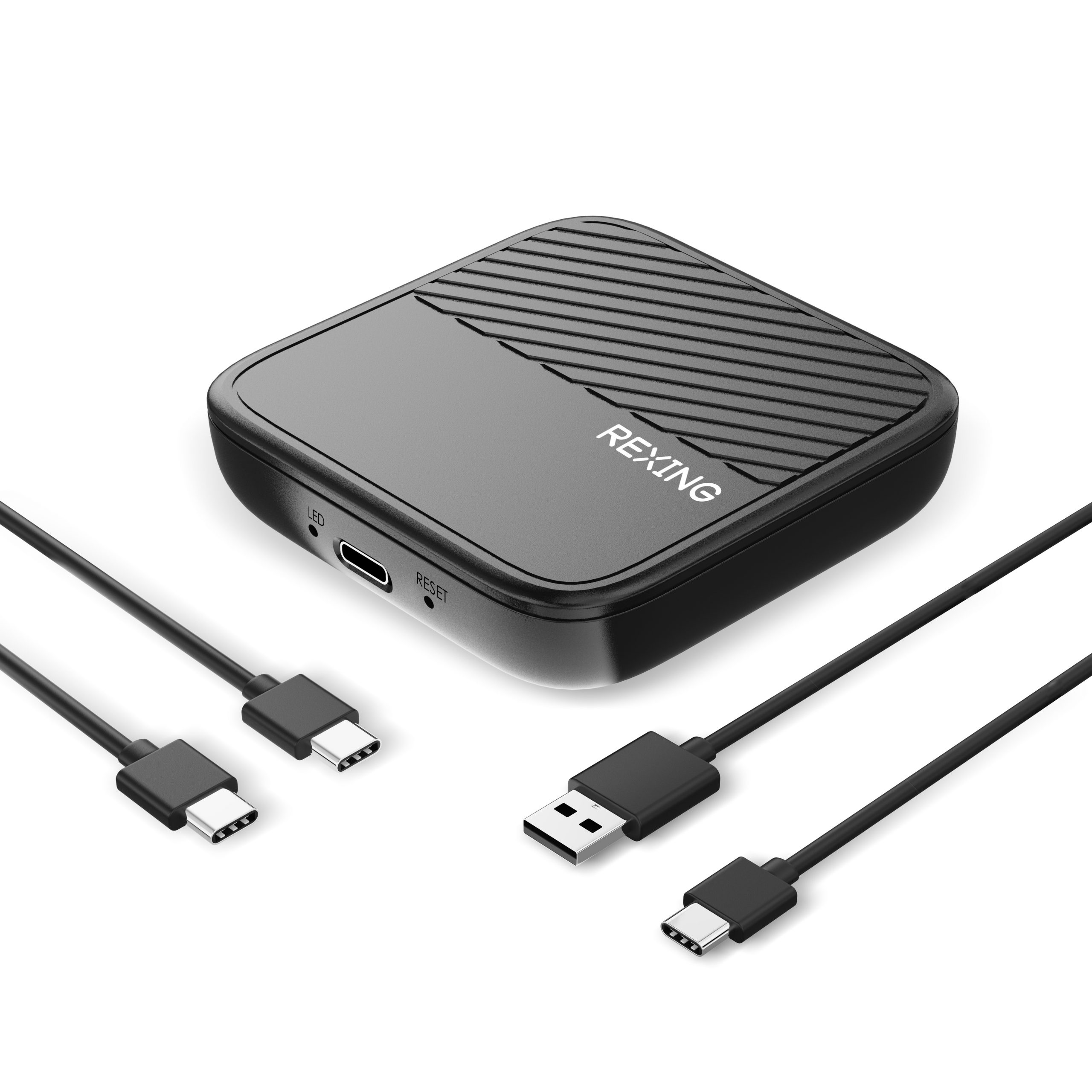
The CPW-2 converts an existing wired Apple CarPlay connection to wireless. A USB socket by itself does not mean the car supports CarPlay.
Needs built-in Apple CarPlay that already works through a wired USB connection. The manual notes that compatibility is not guaranteed for every vehicle with built-in CarPlay.
An iPhone running iOS 10 or newer, as specified in the CPW-2 manual. This model is for Apple CarPlay; it does not add Android Auto.
Complete setup while parked. Keep your iPhone close to the adapter and disconnect any previously paired iPhone before pairing a new one.
Connect the adapter’s USB-C port to the vehicle using the supplied USB-C-to-A or USB-C-to-C cable. Use the same vehicle port that works for wired Apple CarPlay—not a charging-only port.
Enable both on your iPhone. The CPW-2 connection screen instructs you to disconnect and forget the existing Bluetooth connection to the car’s infotainment system. Then find the adapter’s Auto-xxxx name in Bluetooth settings; use the name shown on your vehicle screen.
Follow the iPhone prompts: Pair → Allow → Use CarPlay. Give the connection a few seconds to finish, then use the vehicle’s existing CarPlay controls.
The indicator separates power, pairing, and firmware-update states. Read it before changing settings.
The adapter is powering on.
A connection is in progress.
The adapter is connected successfully.
A firmware update is in progress.
The update has completed successfully.
Your package includes the CPW-2 adapter, user manual, and two USB cables to match your vehicle’s CarPlay port.
Plug the USB-C end into the adapter. Use the supplied USB-C-to-A or USB-C-to-C cable to match the vehicle’s wired CarPlay USB port.
The small status light shows startup, pairing, and update activity. Use the guide above to distinguish each state.
The manual identifies a reset button but does not specify a reset procedure. Contact support for instructions before using it as a troubleshooting step.
Check the vehicle’s wired CarPlay connection first, then the USB port and phone pairing.
The manual recommends updating only if you are experiencing a problem. Contact Rexing for the correct CPW-2 firmware and instructions before starting.
No. CPW-2 is designed to convert existing wired Apple CarPlay to wireless. Confirm that CarPlay works when your iPhone is connected directly to the vehicle with a data cable.
This manual describes an iPhone / Apple CarPlay adapter. CPW-2 is not an Android Auto adapter. Check the exact model when choosing a product for an Android phone.
Check that the adapter is connected to the vehicle’s wired CarPlay USB port. Some vehicle USB ports provide charging only. Test your iPhone directly with a data cable in that same port, then reconnect the adapter and follow the pairing steps above.
Make sure the adapter is powered, both Wi-Fi and Bluetooth are enabled on the iPhone, and you are looking for the Auto-xxxx name shown on the vehicle screen. Disconnect the previous iPhone before pairing a new one. If the adapter still does not appear, restart the phone and reconnect the adapter.
Disconnect the previously connected iPhone first. The last connected phone has first priority. On the new iPhone, turn on Wi-Fi and Bluetooth, select the displayed Auto-xxxx device, and accept Pair, Allow, and Use CarPlay.
The CPW-2 manual’s connection screen instructs you to disconnect and forget the existing Bluetooth pairing with the car’s infotainment system before pairing with the adapter. On your iPhone, open Settings → Bluetooth, tap the information button beside the car’s saved connection, and choose Forget This Device. Then pair with the Auto-xxxx name shown on the CarPlay screen.
The package includes USB-C-to-A and USB-C-to-C cables. Use the cable that matches your vehicle’s CarPlay USB port, with the USB-C end connected to the adapter. The adapter is powered by the vehicle’s 5V USB connection.
Include CPW-2 as the model, your vehicle make / model / year, iPhone model and iOS version, the indicator-light state, and whether wired CarPlay works without the adapter. A short description of the pairing step where the connection stops will help.
Our support team can help with compatibility and connection issues.
Based on the official CPW-2 user manual (April 2024) and Rexing’s CPW-2 Best Buy support resources. Vehicle and phone compatibility can vary.