
A clearer view.
A simpler start.
Set up your mirror dash cam, learn the touch controls, and check front and rear recordings before your next drive.
Read the M1 quick start guide ↗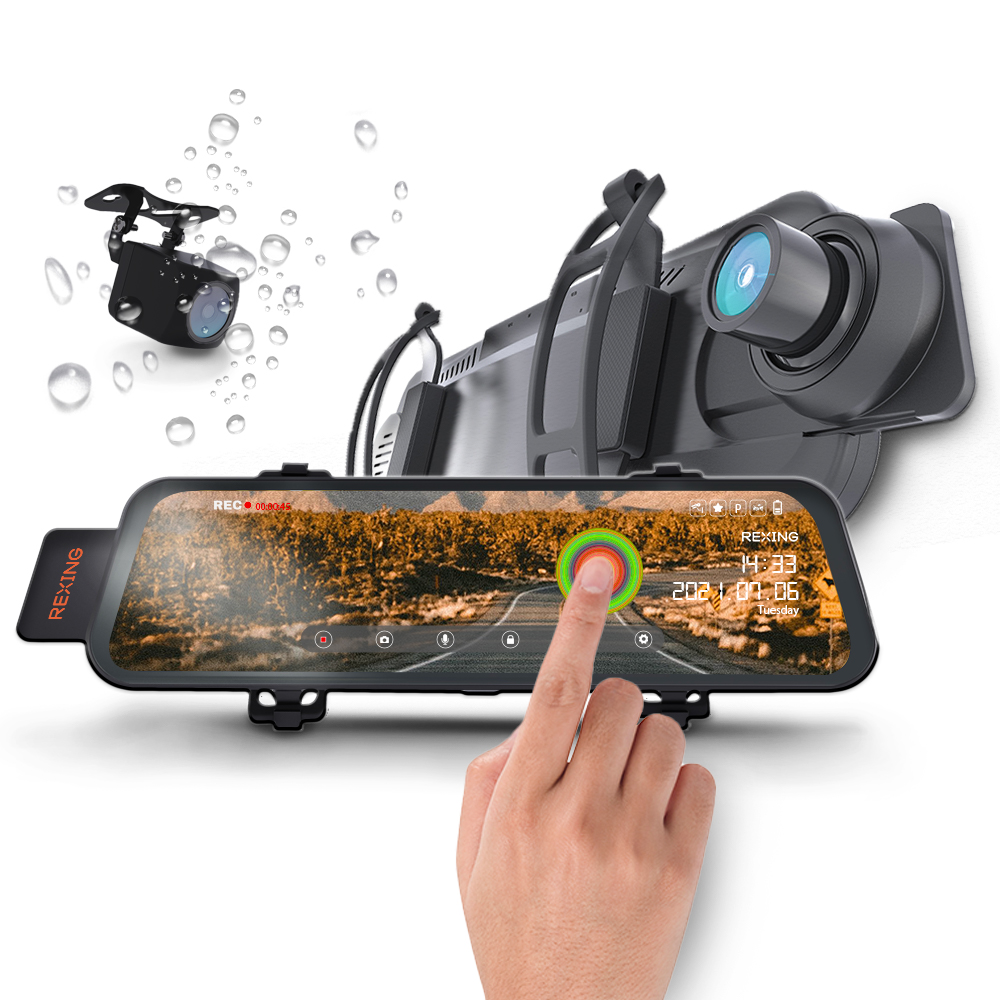
Start with a saved test clip.
Use the guide for the standard M1. M1 Pro and M1S are separate products.
Secure the mirror unit.
Fasten the rear straps around your existing rearview mirror and onto the camera hooks. Check that it sits securely and that the front lens has a clear view.
Prepare the microSD card.
Use Class 10 / UHS-I or faster, up to 256GB. Power off before card changes. Back up footage before formatting.
Connect the supplied charger.
Use the car charger in a 12V vehicle outlet and connect its Mini-USB plug to the M1. Route cables clear of airbags and moving parts.
Format on the touchscreen.
- Stop recording.Tap the on-screen Record control.
- Open Settings.Navigate to Format with the on-screen arrows.
- Choose Yes, then OK.This erases the card contents.
- Resume recording and play a test clip.Check both camera views and the saved files.
Swipe for the view.
Tap for the action.
Adjust controls while safely parked.
Switch the live front and rear camera views.
Adjust the displayed view angle. Aim the physical cameras during setup as well.
Use the on-screen brightness slider to make the display easier to see.
Record, photo and audio.
Tap Record to start or stop a clip. Use the photo icon to capture a photo and the microphone control to change audio recording.
Check the recording indicatorProtect the current clip.
Tap the Lock control to protect the current video. Save a copy of important footage before changing card settings.
Review protected files regularlyTwo connections.
Two different jobs.
The rear video cable and reverse trigger wire serve different functions.
Rear camera → mirror unit
Mount the rear camera and connect its extension cable to the mirror unit’s rear-camera port. The camera receives power through this connection and saves footage to the mirror unit’s memory card.
Rear feed and recordingRed wire → reverse-light circuit
The red trigger wire enables automatic backup-view switching when the vehicle is put in reverse. Have an installer identify the correct reverse-light circuit and secure the wiring.
Automatic reverse-view triggerFind the moment.
Keep a copy.
- Stop recording and tap Playback.Use the touchscreen playback control.
- Choose the file group.Switch between front, rear, locked recordings and photos using the icons.
- Select your clip.Swipe through the file list, tap a filename, then tap its preview to play.
- Use the playback icons.Pause, play, rewind or fast-forward on screen.
A clear next step.
Start with power, card status, recording indicator and the camera view affected.
Which microSD card does M1 support?
Use a Class 10 / UHS-I or faster microSD card, with a capacity up to 256GB. Choose a card made for repeated video recording and format it in the M1 before first use. Switch off the camera before inserting or removing the card.
How do I format the memory card?
Save important recordings first. Stop recording with the on-screen Record control, open Settings, navigate to Format, select Yes and confirm with OK. Formatting deletes the card contents.
Why can I see the rear camera but cannot find its recordings?
The rear camera records to the card in the mirror unit. On a computer, look under Video/R; front clips are under Video/F. Confirm that a card is inserted, recording is active and a short rear-camera test clip can be played back.
How do I switch between the camera views?
Swipe left or right on the live touchscreen. Swipe up or down to adjust the displayed view angle. These screen adjustments do not replace physically aiming the camera during installation.
Why does the display not switch automatically when I reverse?
Automatic reverse view requires the rear camera’s red trigger wire to be connected to the vehicle’s reverse-light circuit. Ask an installer to check the connection and rear-camera cable. Viewing the rear feed manually is a separate function.
Does the standard M1 support GPS?
The M1 guide explicitly labels the GPS logger port as unsupported for M1. Check the model on your device; M1 Pro is a separate model with its own guide.
How long will my card record?
Duration varies with card capacity, channel settings and protected files. Check your actual recordings instead of relying on a fixed hours-per-card estimate. Save important clips before they can be overwritten.
Where are locked recordings stored?
The guide identifies the Lock folder for protected clips. Back up useful footage and review protected files regularly; protected recordings can reduce the space available for ordinary recording.
Can I use this as a parking camera?
For engine-off recording, confirm the exact M1 model, firmware and compatible power kit with Rexing support. The quick start guide does not establish a specific parking-mode setup. Automatic reversing view operates when the reverse signal is present.
Where do I get the correct firmware?
Use the model-specific Rexing firmware tool or contact support with a photo of the model label and current firmware version. Do not install files intended for M1 Pro or another mirror camera.
Your M1 reference desk.
Need help with your M1?
Send the model label, firmware version, memory-card details and a description of the issue.