
STEP 01
Mount the front camera.
Clean and dry the windshield. Apply the electrostatic sticker, then secure the adhesive mount behind the rear-view mirror without obstructing your view.
Panier
Votre panier est vide
Set up your F30, connect Rexing Connect, and find the footage you need—from the road ahead to the view behind.
Download F30 manual ↗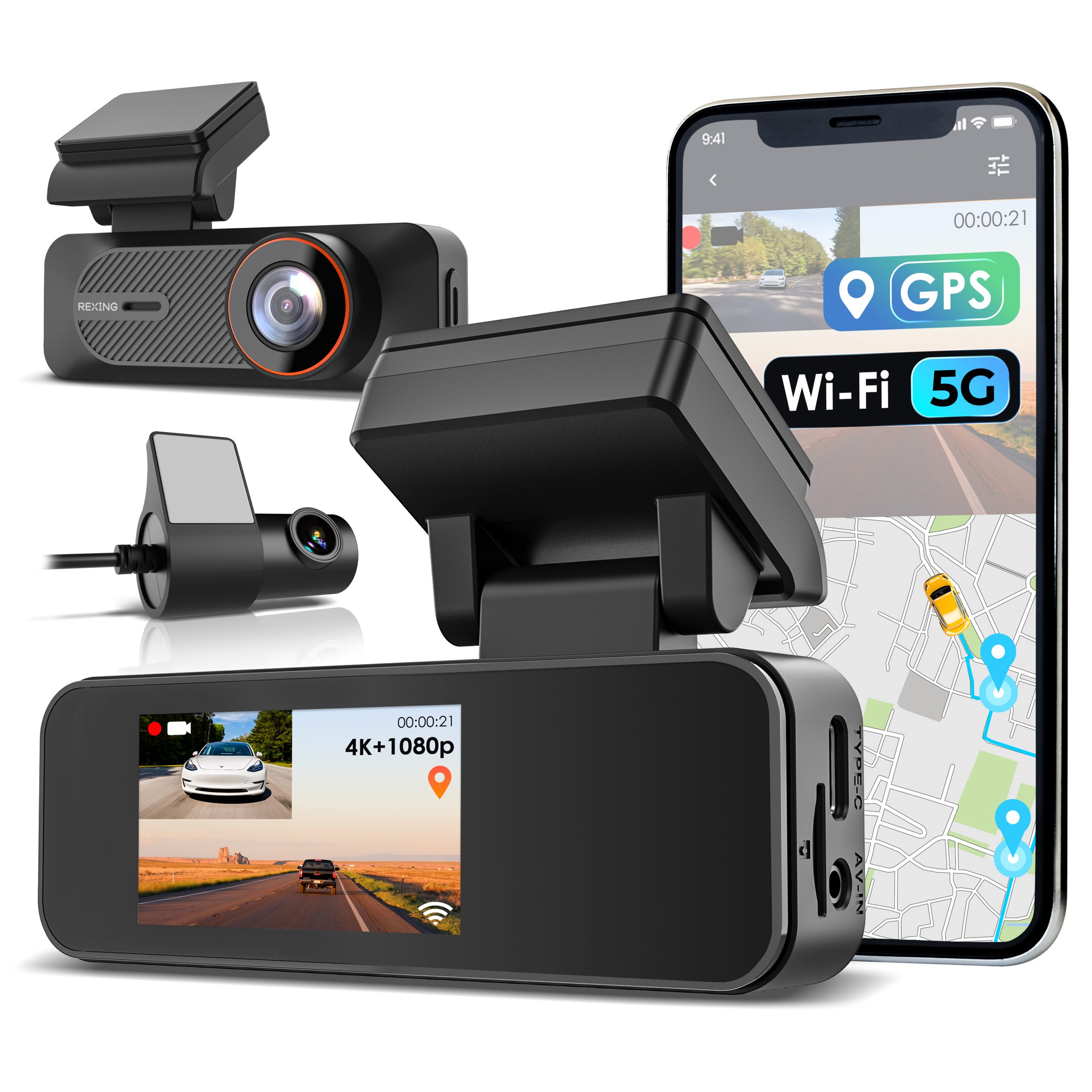
Complete setup while parked. Keep the camera and cables clear of your view, airbags and moving parts.
Clean and dry the windshield. Apply the electrostatic sticker, then secure the adhesive mount behind the rear-view mirror without obstructing your view.
Mount the rear camera and connect its included cable to the front unit’s rear-camera port. Check the rear view before finishing the cable routing.
Insert a compatible card with power off. Connect the supplied car charger to the USB-C power port and the vehicle’s 12V accessory socket.
The F30 installation guide specifies Class 10 / UHS-I or higher microSD cards, up to 128GB.
Formatting deletes recordings, including locked files. Save important footage before inserting a card that may need formatting.
Push the card into its slot until it clicks. Never insert or remove a card while the camera is powered.
Power on with the card inserted. The manual says that if formatting is required, a prompt appears and formatting starts automatically. It may take a few minutes.
After formatting finishes, recording starts automatically. Check the flashing red indicator and verify a short saved clip in the app.
Use the app for playback and downloads. Use a compatible GPS video player to review recorded route and speed information.
The F30’s GPS mount records vehicle location and speed. It searches for a signal when the camera receives power; the GPS icon changes once a signal is active.
For computer playback, power off before removing the card, then copy the files with a compatible card reader.
Find GPS video player downloads →Parking monitoring requires compatible hardwire power. Kits are sold separately; confirm F30 connector compatibility before purchase or installation.
The F30 manual describes impact-triggered parking recording with a compatible Smart or OBD Smart Hardwire Kit. The camera switches between parking and normal recording as vehicle power status changes.
App Parking Monitor: enable with the required kitDo not enable Parking Monitor without the compatible smart hardwire kit connected.
The kit’s motion sensor powers the camera when it detects movement. The kit controls when motion-triggered recording starts.
App Parking Mode: OFFThe F30 manual requires Parking Mode to remain off in Rexing Connect when using this motion-sensing kit.
A hardwire kit’s low-voltage protection may cut power to protect the vehicle battery. Frequent recording can use available battery power; after cutoff, motion cannot start recording until the kit supplies power again. Cutoff and restart behavior depend on the installed kit.
Start with camera power, the memory card and your phone’s Wi-Fi connection.
Ask Rexing support →Use a Class 10 / UHS-I or higher microSD card, up to 128GB, following the F30 installation instructions. Power off before inserting or removing it. For a larger card, ask Support to confirm compatibility with your unit first.
Keep the camera powered, open the phone’s Wi-Fi settings and join the network shown on the camera. Then open Rexing Connect and tap Connect. If your phone warns that this Wi-Fi has no internet, keep the Wi-Fi connection for camera access.
Gray indicates Wi-Fi standby; green indicates the app is connected. Flashing red means recording is in progress; flashing yellow means the current video is locked.
Hold the camera button for about 3 seconds to lock the current clip. Locked files are protected from loop overwriting and can be found in the RO folder under CARDV / MOVIE on the card. Formatting still erases them.
Loop recording overwrites the oldest unlocked videos. Locked clips remain on the card, so back up important recordings and format the card when needed. The manual’s default G-sensor setting is Low.
Connect the F30 to your phone through Rexing Connect. The current manual says the camera time and date sync automatically with the phone when the app connects.
Check power from the installed hardwire kit and verify the setting for that kit. Low-voltage protection can cut camera power to protect the vehicle battery; when power is cut, parking recording cannot operate. Refer to your kit’s instructions for its cutoff and restart behavior.
Contact Support with the F30 model label, current firmware version and the issue you want to resolve. Do not use firmware for a similarly named model or assume that an update alone enables parking monitoring without its required hardware.
Share your model, firmware version and the issue with our team.
Register your camera ↗ · Warranty & returns →Based on the F30 User Manual REV03202026. Available settings may vary with firmware.