
Insert & format your card
Use a Class 10 or higher microSD card, up to 256GB. Turn the camera off before inserting or removing the card. Format it in the camera before first use.
MENU → System Settings → Format / Disk Formatting → Yes
Panier
Votre panier est vide
Rexing product support
Set up your camera, connect your phone, and find the right answer—all in one place.
Open C3 manual PDF · English · Manual revision 11262025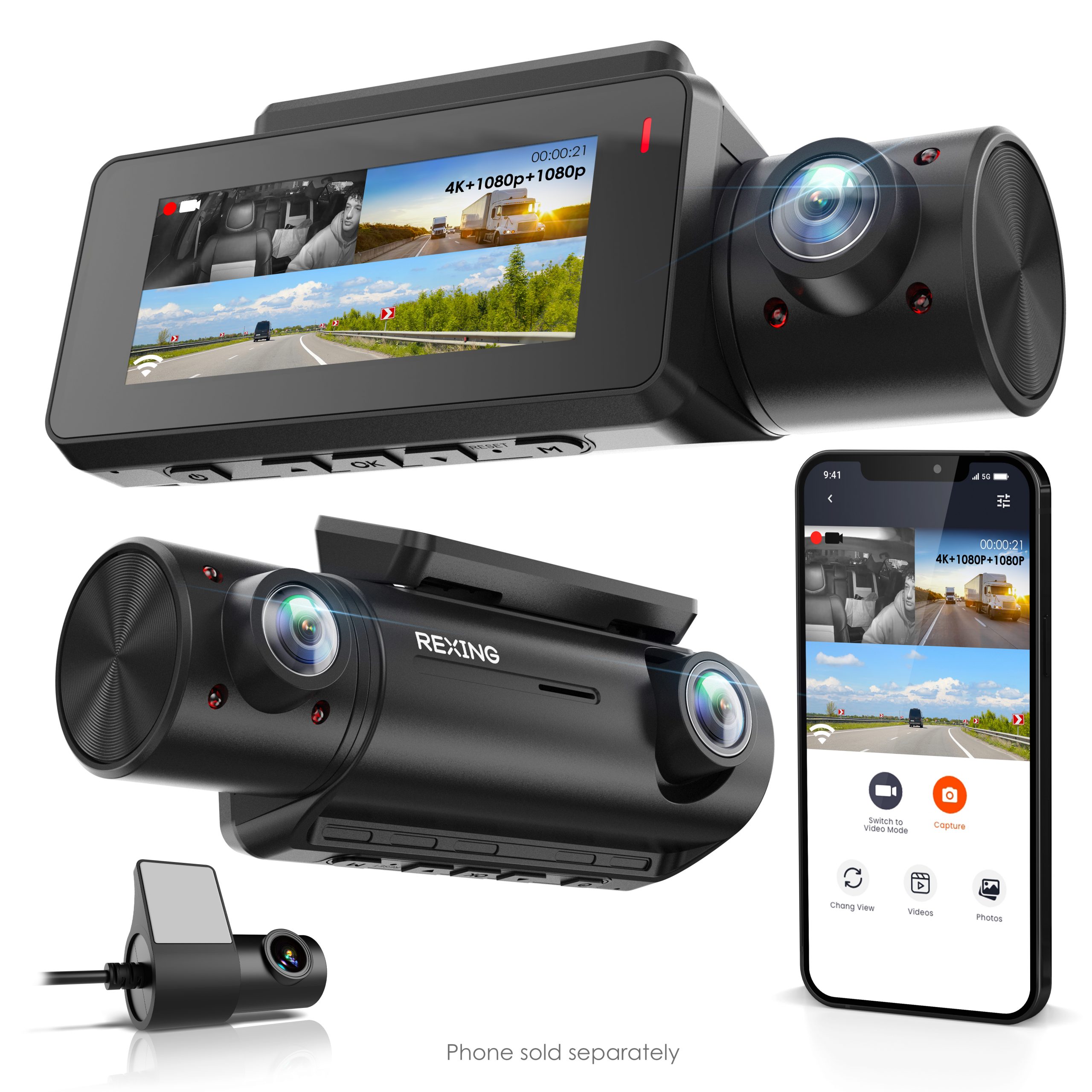
01 / Start here
New to the C3? Prepare the card, mount the camera, then check all three views.
Use a Class 10 or higher microSD card, up to 256GB. Turn the camera off before inserting or removing the card. Format it in the camera before first use.
Clean the windshield and place the mount where it will not block your view. Wait at least 20 minutes after applying the mount before attaching the camera. Connect the rear camera and supplied car power adapter.
The C3 starts recording when it receives power. A flashing blue light indicates recording. Press DOWN to switch between front, cabin and rear views. Press OK to start or stop a recording.
02 / Stay connected
Use Rexing Connect to view the camera feed and download recordings while connected to the C3's Wi-Fi network.
Get the Rexing Connect app →With the camera powered on, press and hold DOWN. The network name and password appear on the camera screen.
Open your phone's Wi-Fi settings. Choose the network shown on the C3 and enter the on-screen password. Stay connected to this network when using the app.
Tap Connect to access live view and your recordings. To turn the camera's Wi-Fi off, hold DOWN for two seconds.
03 / Park with confidence
Parking monitoring needs a compatible hardwire kit, sold separately. The menu setting depends on the type of kit you use.
The C3 manual describes a vibration / gravity-sensing mode that records when sudden movement or impact is detected. The smart hardwire kit enables the transition between driving and parking operation.
In this configuration, the kit's motion sensor powers on the camera when it detects movement. The C3 manual specifically instructs you to keep the camera's Parking Mode setting off when using this kit.
04 / Find an answer
Model-specific answers, checked against the C3 user manual.
On the camera, press MENU and select File Explorer. Choose the front, interior or rear folder, use UP / DOWN to select a file, and press OK to play it. For computer playback, power off the camera, remove the microSD card and use a card reader. You can also download recordings through Rexing Connect.
Regular recordings are in video_front, video_interior and video_back. Protected clips are in video_front_lock, video_interior_lock and video_back_lock. While recording, hold MENU to lock the current clip. Copy important footage to another device before formatting.
A short press of the Power button turns the display on or off; it does not turn the camera off. Check for the flashing blue recording light. Holding Power turns the device on or off.
The C3 relies on external power for operation and shuts down within about three seconds after power is disconnected. Use the supplied car power adapter for normal driving. Parking monitoring requires the appropriate hardwire setup.
The manual instructs you to hold the reset pinhole for four seconds if operation becomes erratic or the camera stops responding. If the issue continues, contact support with the model, firmware version, card details and a description of the problem.
Press DOWN to cycle through the front, cabin and rear views. Press UP / MIC to turn audio recording on or off. Hold MENU while recording to protect the current clip.
No. Ask support to confirm the correct update for your C3 and its hardware version before installing firmware. Include a photo of the model label and the firmware version shown in the camera settings.
05 / Keep these handy
Controls, installation, settings and parking configurations in the official English guide.
Open PDF manual ↗Find Rexing Connect and the instructions for connecting your phone to your camera.
Explore Rexing apps →Read the current warranty and return information, including how to request assistance.
View warranty information →Real help, when you need it
Tell us your model, firmware version, memory card capacity and what happened. A photo of your setup helps us understand the issue.
C3 guidance based on the official user manual, revision 11262025. Menu wording may vary by firmware. View the C3 product.