Rexing product support

Your C2.
Ready for the road.

Set up your camera, connect your phone, and find the right answer—all in one place.

C22K Front · 1080p RearRexing Connect
Open C2 manual PDF · English · Manual revision 08062025
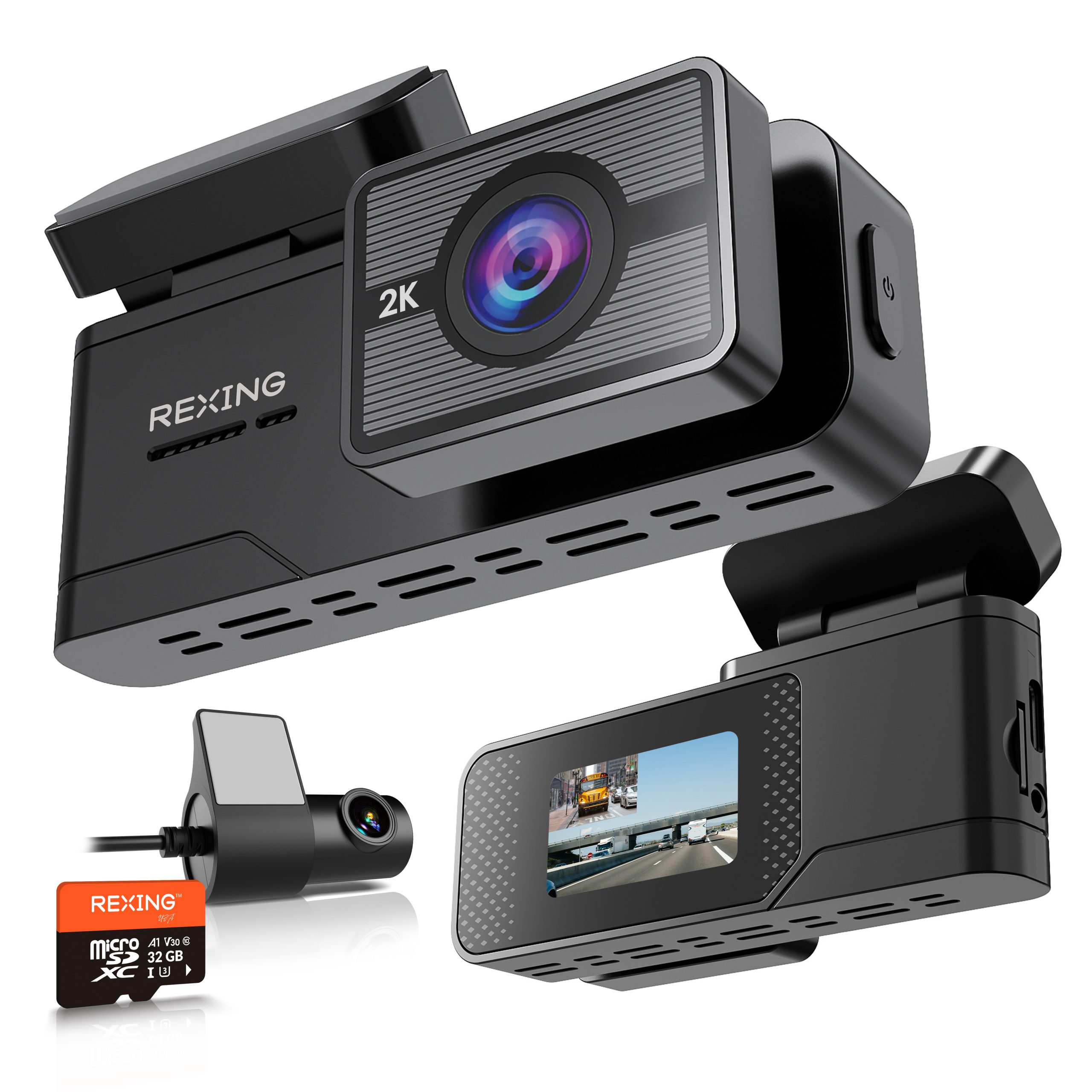
Rexing C2 front dash camera and rear camera
For the Rexing C2. Check the model label on your camera.

01 / Start here

Three steps to your first drive.

New to the C2? Prepare the card, mount the camera, then check both camera views.

01 — PREPARE

Insert & format your card

Use a Class 10 / UHS-I or higher microSD card, up to 128GB. Turn the camera off before inserting or removing the card. Back up important footage before formatting.

Insert card → Connect power → Press POWER when the format prompt appears
02 — INSTALL

Mount & connect

Clean and dry the windshield, then apply the electrostatic sticker behind the rear-view mirror where it will not block your view. Align the camera carefully before attaching it. Plug the rear camera into the rear camera port. Connect the supplied car charger to the USB Type-C power port.

03 — CHECK

Confirm recording

The C2 starts recording when it receives power. A flashing red screen icon indicates recording; flashing yellow indicates that the current clip is locked. Check the front and rear views in Rexing Connect.

Before formatting: Save any footage you need. Formatting permanently erases the card. Formatting may take a few minutes. Recording starts automatically when formatting is complete.

02 / Stay connected

From camera
to your phone.

Use Rexing Connect to view the camera feed and download recordings while connected to the C2's Wi-Fi network.

Get the Rexing Connect app →
Camera Wi-Fi → Phone Wi-Fi → Rexing Connect
  1. Open the C2 Wi-Fi screen

    Wi-Fi enters standby automatically when the C2 is powered on. Press the POWER button to switch to the Wi-Fi page. A gray Wi-Fi icon means standby; green means the app is connected.

  2. Join the camera's network

    Open your phone's Wi-Fi settings and choose the C2 network (HX_XXXXXX). The manual lists 12345678 as the default password; use your updated password if you have changed it. Stay on this network when using the app.

  3. Open Rexing Connect

    Tap Connect to access live view, settings and recordings. The camera time and date sync with your phone when connected. Turn off your phone's Wi-Fi to disconnect.

03 / Park with confidence

The right kit. The right setting.

Parking monitoring needs a compatible hardwire kit, sold separately. The menu setting depends on the type of kit you use.

IMPACT-TRIGGERED RECORDING

OBD Smart or Smart Hardwire Kit

App Parking Monitor: enable with the compatible kit

The C2 manual specifies an OBD Smart Hardwire Kit or a Smart Hardwire Kit for vibration detection. With the appropriate kit connected, enable Parking Monitor in Rexing Connect. Sudden movement or impact triggers event recording.

MOTION-TRIGGERED RECORDING

360° Intelligent Hardwire Kit

App Parking Mode: OFF

The kit's sensor powers on the camera when motion is detected and records until the motion clears. For this setup, the C2 manual instructs you to keep Parking Mode OFF in the Rexing Connect app.

Check your exact kit before changing settings. These are the kit names used in the C2 manual. Do not enable Parking Monitor in the app without the required smart hardwire kit. If you are unsure which kit you have, contact support with photos of its label and connector.
Hardwire installation guidance ↗

04 / Find an answer

A little help.
A smoother drive.

Model-specific answers, checked against the C2 user manual.

How do I watch and download my recordings?

Connect your phone to the C2 Wi-Fi network, open Rexing Connect and tap Connect. Access video playback from the app home screen. Press and hold a video clip to select it, then use the download button. The app separates unlocked videos, locked videos and parking-mode videos.

How do I format a new memory card?

Power off the camera before inserting the card. Connect power. If a formatting prompt appears, press POWER to confirm. Wait for formatting to finish; recording starts automatically. Formatting erases the card, so first copy any important files to another device.

Why is the date or time incorrect?

The C2 updates its time and date to match your phone when connected through Rexing Connect. Check the time on your phone, then reconnect the app to sync the camera.

What do the screen icons mean?

Flashing red indicates recording. Flashing yellow indicates that the current video clip is locked. The Wi-Fi icon is gray in standby and green when the app is connected. The screen also shows microphone and memory card status.

Does the C2 have MENU, MIC or DOWN buttons?

The C2 uses a single POWER button. The manual lists short-press functions for switching views, accessing Wi-Fi and confirming a format prompt. Hold the button to power the device on or off. Recording controls, playback and settings are available through Rexing Connect.

Why does the camera turn off when unplugged?

The camera shuts down about three seconds after external power is disconnected. Use the supplied car charger during normal driving. Parking monitoring requires the appropriate compatible hardwire kit, sold separately.

Should I update firmware to enable parking mode?

First confirm your hardwire kit and the parking setting required for that kit. Do not install firmware from another model. If an update is needed, contact support with your C2 model label and firmware version so the correct file can be confirmed.

05 / Keep these handy

Your C2 resource shelf.

READ

C2 user manual

Controls, installation, settings and parking configurations in the official English guide.

Open PDF manual ↗
CONNECT

Apps & Wi-Fi

Find Rexing Connect and the instructions for connecting your phone to your camera.

Explore Rexing apps →

Real help, when you need it

Still need a hand?

Tell us your model, firmware version, memory card capacity and what happened. A photo of your setup helps us understand the issue.

Contact Rexing support →

C2 guidance based on the official user manual, revision 08062025. Menu wording may vary by firmware. View the C2 product.