Rexing product support

Your C1B.
A simpler start.

Find the right setup, learn your camera's controls, and get back to the road.

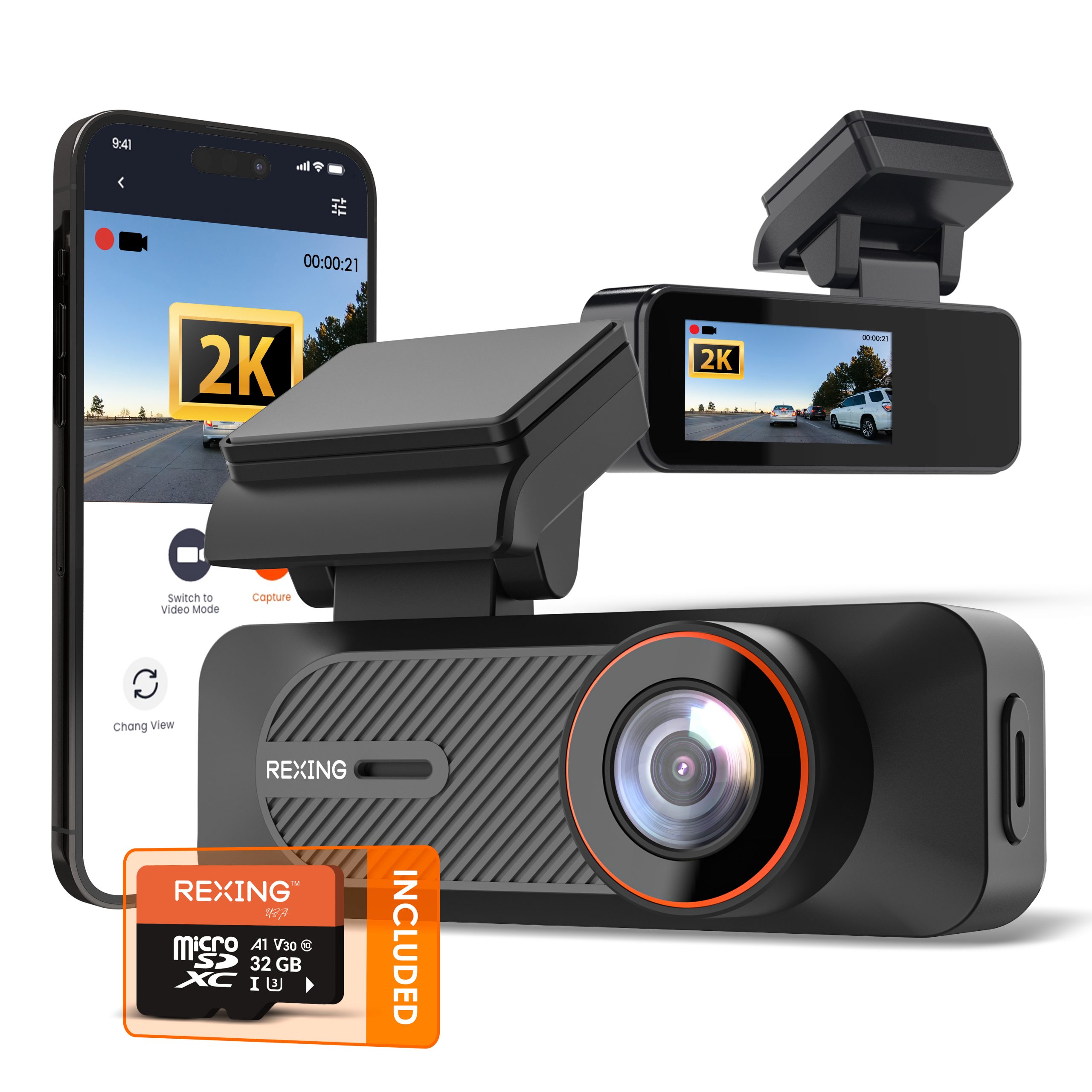
2K Front · Single ChannelRexing Connect32GB card included
Open C1B manual ↗English PDF · Revision 05042026
Rexing C1B front dash camera
Check the C1B model label on your camera.

01 / Start here

Three steps to your first drive.

Set up the card, mount the camera, and confirm that your first clip is recording.

Prepare the memory card

Use a Class 10 / UHS-I or higher microSD card, up to 128GB. A 32GB card is listed in the box contents. Back up files and power off before inserting the card. When needed, the camera displays a format prompt and formats automatically after power-up.

Mount & connect USB-C

Clean and dry the windshield. Position the electrostatic sticker behind the rear-view mirror without obstructing your view. Secure the mount, route the cable carefully, and connect the supplied charger to the camera’s USB-C power port.

Check the recording icon

The camera starts recording when it receives power. Flashing red indicates recording; flashing yellow indicates a locked clip. Check the view and date in Rexing Connect before driving.

Save footage before formatting. Formatting erases the card. Keep power connected during the process. The manual recommends formatting after transferring files, or at least monthly.

02 / Know your camera

One button. Three key actions.

Use the timing shown in the C1B camera overview. These controls differ from C1 and C1 Plus.

Press once

Activate Wi-Fi or switch views. When connecting your phone, open the Wi-Fi screen and check the network name.

Hold for 3 seconds

Lock the current video clip to protect it from normal loop recording. Download important clips for a separate backup.

Hold for 10 seconds

Reset the device. Use this action only when you intend to reset it; avoid a long hold when you only want to lock a clip.

03 / Connect your phone

Your recordings.
Ready to review.

Rexing Connect lets you view the camera feed, download recordings and adjust settings over local Wi-Fi.

Get Rexing Connect →
  1. Power on and open Wi-Fi

    Wi-Fi automatically enters standby when the camera receives power. Press the button once to switch to the Wi-Fi page if needed. White indicates standby; green indicates an app connection.

  2. Join the camera network

    Select the name shown on the camera’s screen. The manual lists C1-XXXXXX and the default password 12345678. Use your current password if you changed it.

  3. Open Rexing Connect

    Tap Connect to access live view, settings and recordings. Stay on the camera network if your phone reports no internet. Camera date and time sync with your phone.

04 / Parking protection

Match the kit to the setting.

Parking monitoring requires a compatible hardwire kit, sold separately.

Impact-triggered recording

OBD Smart or Smart Hardwire Kit

The manual specifies these kits for vibration detection. Enable Parking Monitor in Rexing Connect only with the appropriate smart kit connected. The camera can then switch between driving and parking operation as vehicle power changes.

Motion-triggered recording

360° Intelligent Kit · App Parking Mode OFF

The kit’s sensor powers the camera on when motion is detected. For this configuration, the C1B manual instructs you to keep Parking Mode OFF in Rexing Connect.

Camera power must remain available. If your kit reaches its low-voltage cutoff, it can stop supplying power, so motion-triggered recording will also stop. Frequent events can use more battery energy. Check your kit’s instructions and connector compatibility.
Watch hardwire installation videos →

05 / Find an answer

Help without
the guesswork.

Practical checks for recording, storage, connectivity and power.

How do I format a new memory card?

Back up the card first and insert it while the camera is off. Connect power. The C1B manual says that when formatting is required, a prompt appears and formatting begins automatically. Keep power connected until it finishes and recording starts. Formatting erases the card.

What does the camera button do?

Press once to activate Wi-Fi or switch views. Hold for 3 seconds to lock the current clip. Hold for 10 seconds to reset the device. These actions are listed in the C1B camera overview; avoid holding the button longer than intended.

How do I watch and download my videos?

Connect your phone to the camera Wi-Fi, open Rexing Connect and tap Connect. Open video playback from the app home screen. Press and hold a clip to select it, then use the download button.

Why does the phone report no internet?

Camera Wi-Fi connects your phone directly to the dash cam; it is not an internet hotspot. Stay connected to that network while using Rexing Connect. If prompted, select Keep Trying Wi-Fi, then tap Connect in the app.

Why is the memory card full?

Loop recording overwrites the oldest unlocked clips. Locked files are protected and remain until manually deleted or the card is formatted. Back up important footage, then clear files or format as needed. The guide lists a one-minute loop and Low G-sensor sensitivity as defaults.

Which memory card should I use?

The installation instructions specify Class 10 / UHS-I or higher microSD cards up to 128GB. The box contents list a 32GB card. Confirm compatibility with support before using a larger card, and always power off before inserting or removing it.

Why are the date and time wrong?

Check the date and time on your phone, then connect the C1B to Rexing Connect. The camera synchronizes its date and time with your phone when connected through the app.

Why does parking monitoring stop?

Check the exact power kit, connections and parking setting. A hardwire kit with low-voltage protection can cut power when the vehicle battery reaches its cutoff. Without power, the camera cannot record or wake for motion. Follow the instructions for your kit.

Why does the camera turn off when unplugged?

The manual states that the camera shuts down about three seconds after external power is removed. Use the supplied car charger for normal driving or a compatible hardwire setup for parked recording.

Where can I find the correct firmware?

Contact support with the C1B model label and current firmware version. Install only a file confirmed for your exact hardware. Do not use C1, C1 Plus or V1 firmware.

06 / Keep these handy

Your C1B resource shelf.

Official C1B manual

Model-specific controls, installation and parking configuration.

Open PDF manual ↗

Real help, when you need it

Still need a hand?

Send your C1B model label, firmware version, memory card capacity and a photo of the power connection. These details help us diagnose the issue.

Contact Rexing support →

C1B guidance based on manual revision 05042026. Check the included guide for your hardware version.