


Rexing Connect
For cameras with compatible Wi-Fi, connect your phone to the camera to review recordings and available GPS information.
App access and GPS features depend on your camera model and firmware.
Cart
Your cart is empty
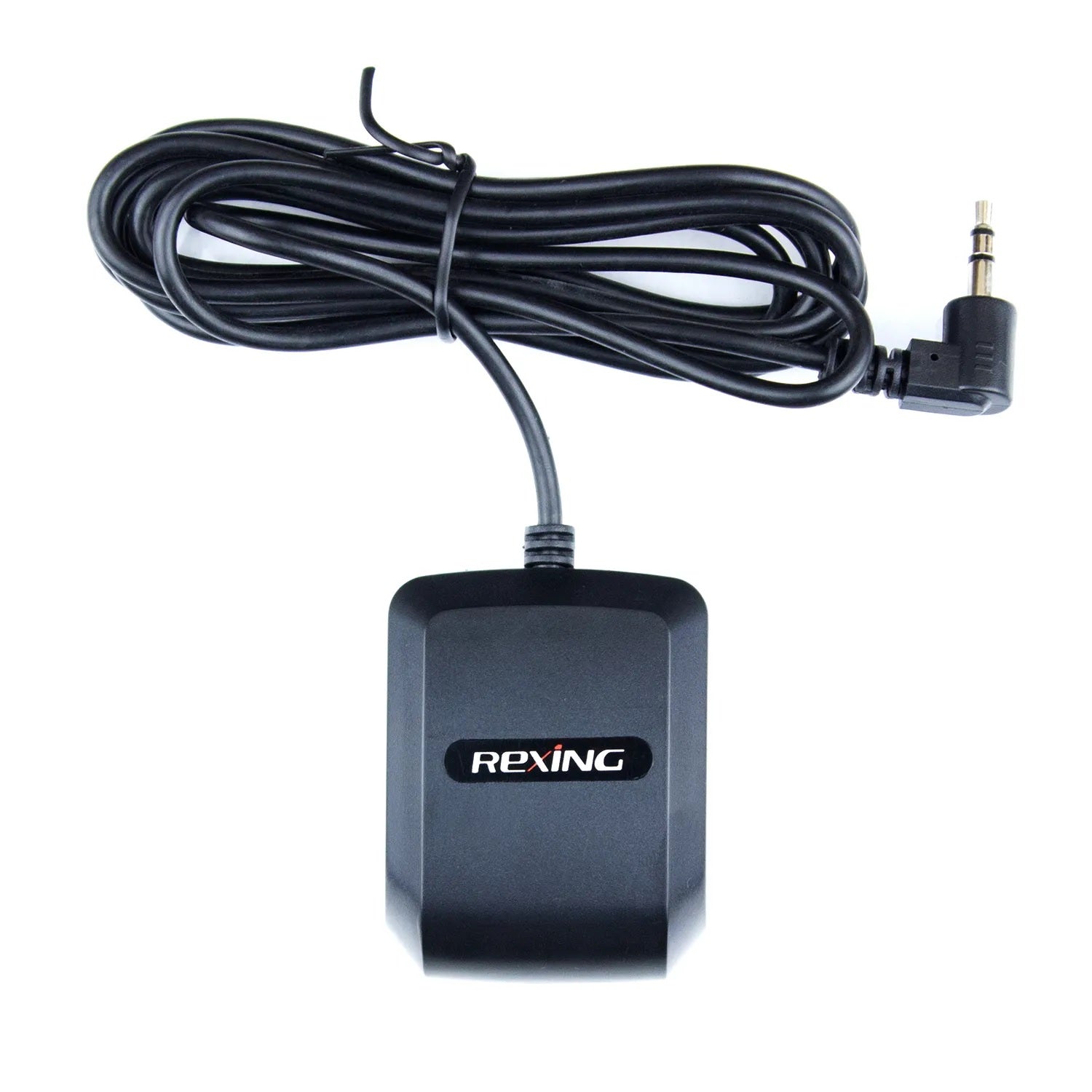
External GPS logger with a 3.5mm connector for compatible Rexing dash cams. After a satellite signal is acquired, your camera can record location, speed and route information alongside its video.
Match your exact camera model and version before ordering, and check that it has the required GPS port. A similar connector alone does not establish compatibility. If your camera already has GPS, confirm whether an additional logger is needed.
Not compatible with C3. C3 requires its dedicated Rexing C3 GPS Logger — 3.5mm Connector.
Connect the logger to the compatible camera's GPS port, check the camera's GPS settings and allow it to acquire a satellite signal before recording. This accessory records GPS information with a compatible camera; it does not enable parking mode by itself.
Use Rexing Connect with your compatible camera's Wi-Fi, or copy the original recordings to your computer and open them in Rexing GPS Player. Phone app functions depend on the camera model and firmware. GPS playback requires footage recorded with GPS data; GPS information cannot be added to earlier recordings captured without it.
Rexing Connect: iPhone / iOS · Android
Rexing GPS Player: Windows · Mac
Have a different camera? Search the GPS compatibility table →
EXTERNAL GPS LOGGER · 3.5mm
Compatible models, GPS port connection and recording playback.
Match your exact model and version.
Check that your camera has the required 3.5mm GPS port. A matching connector does not establish compatibility. If your camera already has GPS, confirm whether an additional logger is needed.
Not compatible with C3. C3 uses a different dedicated logger, despite also having a 3.5mm connector. View the C3 GPS Logger →
Check GPS accessories for another model →This external logger connects to the GPS port on a compatible Rexing dash cam. After a satellite signal is acquired, the camera can record location, speed and route information alongside its video.
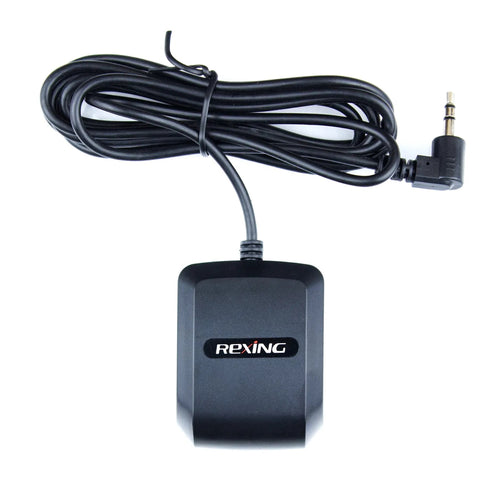
Refer to your camera’s manual for GPS port location and settings.
Phone and computer options.
For cameras with compatible Wi-Fi, connect your phone to the camera to review recordings and available GPS information.
App access and GPS features depend on your camera model and firmware.
Copy the original files from your camera’s memory card to your computer and open them in the compatible GPS Player.
Keep the original files and check your camera manual for player requirements.
Need help identifying your GPS port? Contact Rexing support.