
V1 Lite.
Connect.
Stay covered.
Set up your V1 Lite, use Rexing Connect and choose the correct parking-monitor power kit.
Download V1 Lite manual ↗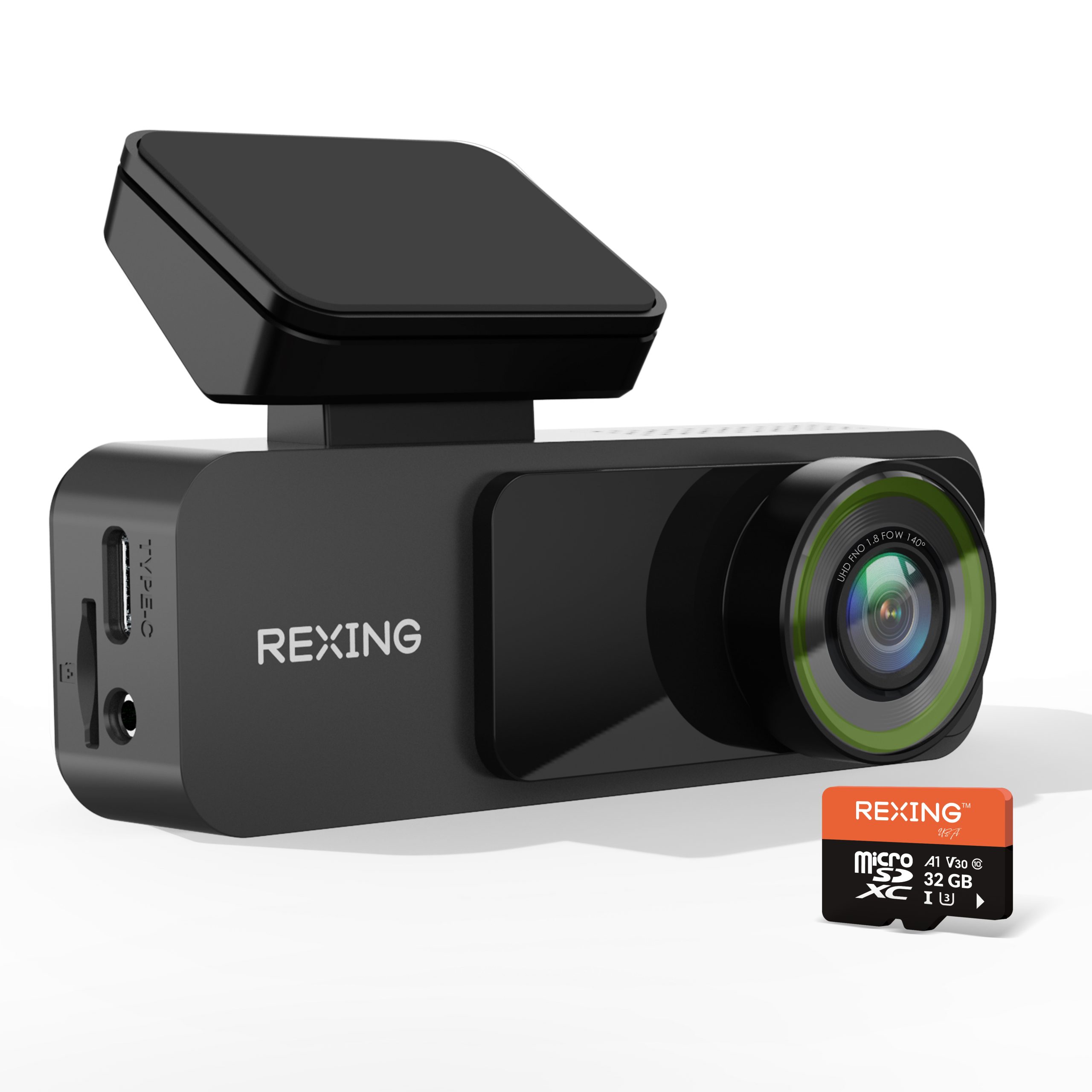
Prepare for the first drive.
Secure the mount
Clean and dry the windshield, apply the electrostatic sticker and fit the 3M mount as illustrated. Position the camera behind the mirror without blocking your view.
Insert the memory card
Power off before inserting or removing the card. Use Class 10 / UHS-I or higher microSD up to 128GB. The REV06252025 guide lists a 32GB card in its package.
Power and format
Connect the supplied charger and USB-C power cable. The guide describes automatic formatting when a format prompt appears, followed by recording. Back up files before use; formatting erases the card and may take a few minutes.
Connect nearby. Keep the footage.
Join the camera Wi-Fi
Wi-Fi enters standby automatically at power-on. If it is off, press the Wi-Fi button. On your phone, join the V1 Lite network shown on the camera; the guide lists the default password 12345678.
Open Rexing Connect
Open the app and select Connect. Stay on the camera Wi-Fi if your phone reports no internet. The camera’s Wi-Fi indicator turns green when the app is connected.
Review and download
Open Video Playback from the app home screen. Hold a clip to select it, then use Download to save it. Review the unlocked, locked and parking-video lists.
Use app controls
The app home screen provides Start/Stop recording, capture, settings and photo/video access. Complete setup while parked.
Check time and date
The V1 Lite syncs its date and time with your phone when connected through the app. To disconnect, turn off your phone’s Wi-Fi; camera Wi-Fi turns off after 5 minutes of inactivity.
Get Rexing Connect
Find official app download resources →
Match the kit to the mode.
Vibration detection
The guide specifies an OBD Smart Hardwire Kit, sold separately, for this mode. Correctly connected, it switches the camera to parking when the engine stops and back to normal recording when it starts.
Motion detection
Use the Rexing 360° Intelligent Hardwire Kit, sold separately. Keep Parking Mode off on the camera; the kit powers it when motion is detected.
Power protection
Follow the exact kit’s installation and battery-protection instructions. Parking recording cannot continue after the kit stops supplying power.
A clearer next step.
Wi-Fi connects but the app does not
Stay connected to the V1 Lite network and return to Rexing Connect. Confirm you selected Connect. Some phones need another attempt; do not switch to a different Wi-Fi network during setup.
Why is the recording indicator yellow?
The guide identifies flashing yellow as a locked current clip, flashing red as recording, gray Wi-Fi as standby and green Wi-Fi as app-connected.
Which format instructions apply?
The V1 Lite guide describes automatic formatting when the camera detects a card that needs it. Use this model’s own guide when preparing the card. Back up files before formatting.
Help us identify the setup
Share your V1 Lite model, power-kit details and a photo of any prompt or warning. Keep important recordings backed up separately.
The right guide for your V1 Lite.
V1 Lite manual
Setup, app & parking
REV06252025 · PDF ↗
Official V1 Lite video
Watch the Rexing product walkthrough on YouTube ↗
Find another model
Search all product support →
Still need a hand?
Contact Rexing with your V1 Lite model and a photo of the issue.