
ProC4G.
Connect.
Protect.
Your guide to installation, OnaGo setup and connected recording. Start with the essentials, then explore the help you need.
Download quick start guide ↗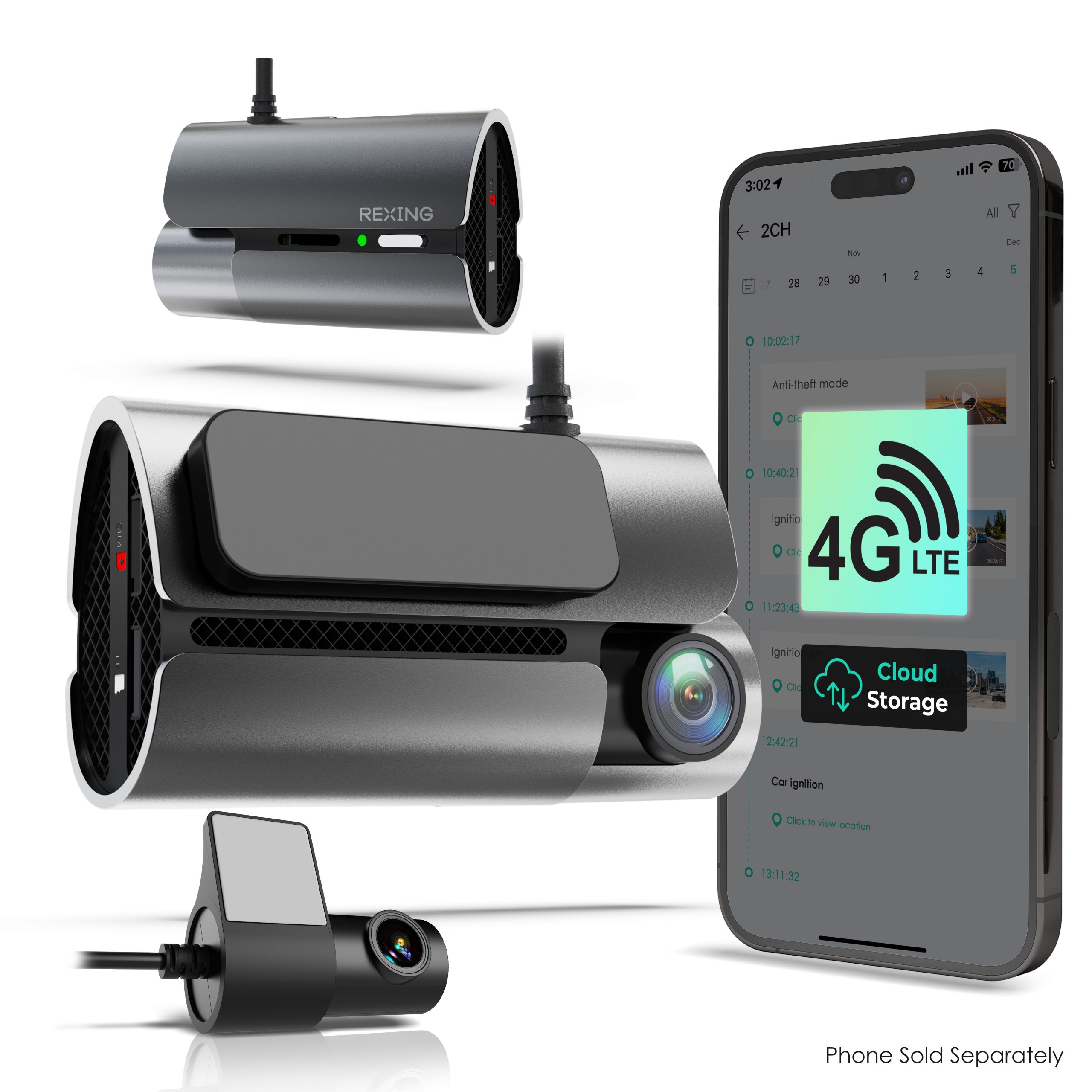
Three steps to recording.
Use the ProC4G guide for the illustrated mounting and cable-routing instructions.
Prepare your memory card
Use a dash-cam-rated microSD card, Class 10 / UHS-I or higher, up to 128GB. Switch the camera off before inserting or removing a card.
Mount both cameras
Clean and dry the windshield. Position the front camera behind the rear-view mirror without obstructing your view. Connect the rear camera to the front unit and route cables securely.
Connect OBD power
Connect the supplied OBD power cable to the vehicle’s OBD port, usually beneath the dashboard. The camera begins recording when powered. Format a new card in the app before normal use.
One app.
Two connection paths.
ProC4G uses OnaGo. Local Wi-Fi and 4G remote access serve different purposes.
Activate in OnaGo
Install OnaGo from the App Store or Google Play. Tap + in the app and scan the QR code on your device. Follow the on-screen activation steps. The quick start guide then asks you to turn the vehicle off and restart it after one minute.
4G: access from a distance
Use the mobile connection for remote live view and cloud services. These features require an active subscription and available mobile coverage. Check the current plan and activation status in OnaGo.
Wi-Fi: connect beside your camera
Wi-Fi turns on when the camera is powered. Find the camera’s SSID and password in its Wi-Fi menu, connect your phone to Rexing-XXX in the phone’s WLAN settings, then return to OnaGo. This local connection does not consume 4G data and does not provide remote viewing.
Parking protection needs power.
The OBD connection supplies power for parking monitoring. Battery protection can intentionally stop the camera from operating.
Check the OBD connection
Make sure the supplied cable is firmly connected to both the camera and the vehicle. A loose connection or interrupted power can stop recording and connected features.
Understand low-voltage cutoff
The OBD power system includes low-voltage protection. When the vehicle battery voltage falls below its protection threshold, power to the camera is cut off to protect the battery.
No power means no parking monitoring
While low-voltage protection is active, the camera cannot record parking events or respond to remote requests. Check the vehicle battery condition and OBD power supply if the camera remains off. A 4G subscription does not override a power cutoff. The official support information does not specify a cutoff voltage, so no fixed value is assumed here.
Find your next step.
Start with power, memory and connection status before contacting support.
Which memory cards can I use?
Use a Class 10 / UHS-I or higher microSD card, up to 128GB. Choose a card designed for continuous dash-cam recording. Back up important footage before formatting.
Where are rear-camera recordings stored?
The rear camera is powered through the front camera. Front and rear footage is recorded onto the microSD card in the front unit.
Why can’t I view the camera remotely?
Check that the camera is powered, activated in OnaGo, covered by a mobile signal and has an active subscription. Connecting to the camera’s local Wi-Fi does not enable remote viewing.
Does recording stop when my plan expires?
Local microSD recording can continue. Remote live view and cloud services require an active subscription. Check your current plan in OnaGo.
Why is the camera off while parked?
Check the OBD connection and the vehicle battery. Low-voltage protection can cut off camera power. Parking monitoring cannot work while the camera has no power.
The camera asks me to format the SD card. What should I do?
First save any recordings you need. Formatting deletes card contents. The quick start guide says to press the Function button once when prompted by “SD card needs formatting.” You can also format a new card in the app.
Watch. Follow. Get connected.
Install your ProC4G
Activate 4G in OnaGo
Still need a hand?
Share your ProC4G model, app connection status and the issue you see.
Model reference: Rexing ProC4G LTE official support and Quick Start Guide, REV12202024. App screens, subscription offers and menus may change. Use your current OnaGo prompts for activation details.