
Smart Hardwire Kit
The guide identifies UPC 857080006565 for impact sensing and time-lapse parking options. Enable the matching camera parking setting for the selected mode.
Select the mode that matches your kitCart
Your cart is empty
Get your mirror camera ready, find your recordings, and choose the right parking setup. Help for the M2 Max model.
Download M2 Max guide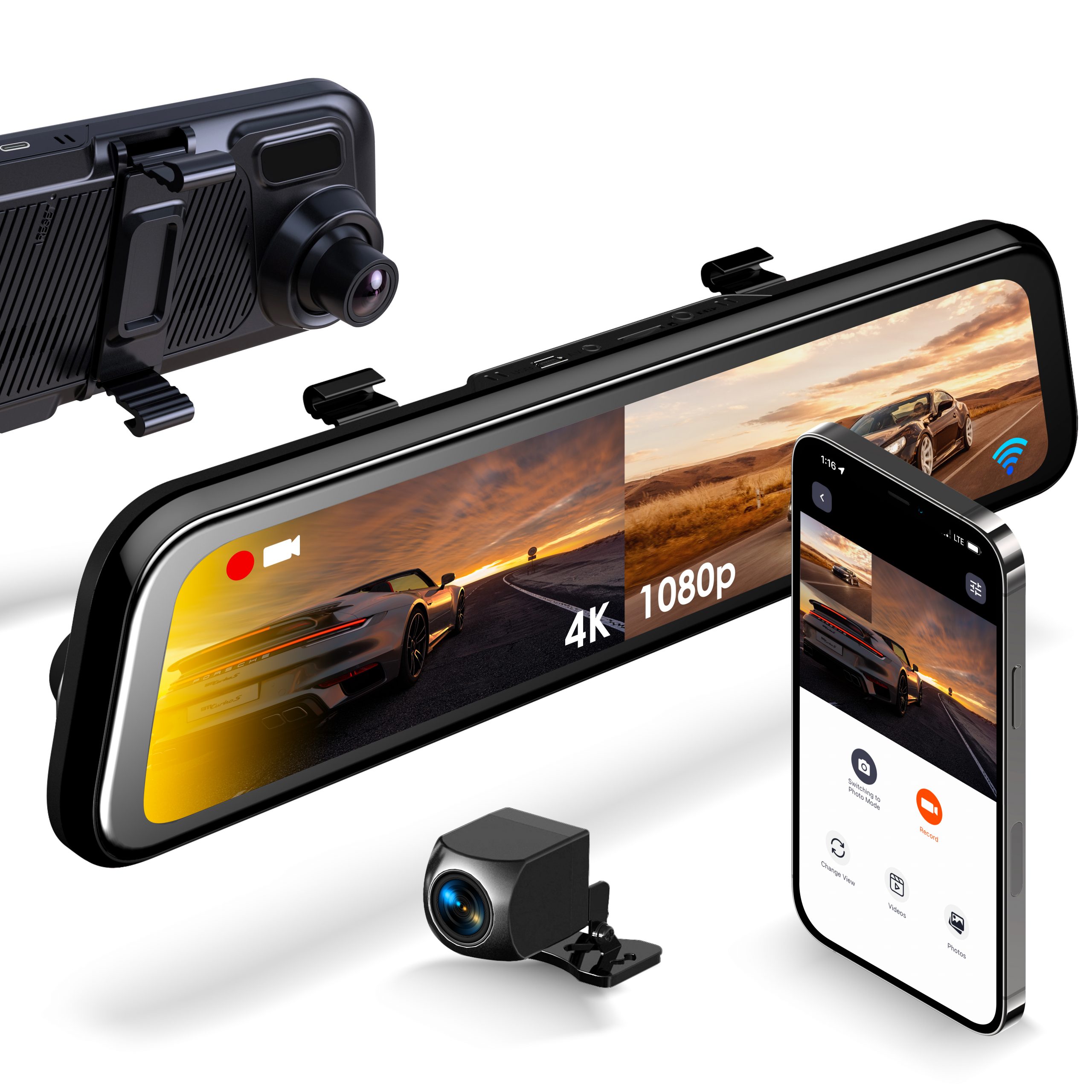
Set up while parked. Back up anything you want to keep before formatting a memory card.
Use a Class 10 microSD card, 32–256GB. Switch the camera off before inserting or removing it. On the touchscreen, stop recording, open Settings, select Format, and confirm.
Secure the camera to your mirror with its straps. Connect the supplied vehicle charger to the Type-C power port, then connect the rear-camera cable to the AV port. Keep cables clear of airbags and moving parts.
Adjust the lenses while parked. Swipe left or right to change between front and rear views. A flashing red indicator shows recording. Check the date, time and a short test recording before driving.
Tap the screen to reveal the controls. Make adjustments while your vehicle is safely parked.
Hold the power button for about three seconds to turn the device on or off. A short press toggles the display backlight; tap the screen to wake the display.
Swipe horizontally between camera views. Calibrate blind-spot and rear-end collision warnings before relying on them. These alerts assist you; always check your surroundings directly.
Open File Explorer. Look for VIDEO-F, VIDEO-B, VIDEO-LOCK or IMAGE. Copy important footage before formatting. Locked clips also consume storage, so back them up and remove unneeded files.
Engine-off recording needs a compatible hardwire kit. Check the kit’s label and the M2 Max power connector before purchasing or installing.
The guide identifies UPC 857080006565 for impact sensing and time-lapse parking options. Enable the matching camera parking setting for the selected mode.
Select the mode that matches your kitThe guide identifies UPC 810046603178 for motion detection. With this kit, leave the camera’s Parking Mode setting OFF, as instructed in the M2 Max guide.
Motion kit: camera Parking Mode OFFWhen a hardwire kit’s low-voltage protection cuts power, the camera cannot record or wake for another event. Frequent triggers can use up the available battery reserve. Restore the vehicle battery’s charge and check the kit’s wiring and settings; do not bypass the protection.
Confirm reliable vehicle power and recording before testing parking behavior.
Test the kit’s intended trigger while safely parked. Impact recording may occur without lighting the screen.
The optional rear red-wire connection switches the reversing view. It is separate from engine-off parking monitoring.
Start with power, storage and the selected mode. These checks help narrow down the cause.
Try the supplied charger in a known-working vehicle outlet. Check the Type-C connection and hold the power button. For a hardwired installation, check the fuse, ground and kit status; low-voltage protection can intentionally remove power. Contact support if normal vehicle power does not restore operation.
Back up recordings, then format the card in the camera while recording is stopped. Confirm the card is suitable and within the supported capacity. If errors continue, try a known-good card. Preserve any footage needed before replacing or reformatting it.
Turn the camera off and check the rear cable connections. Restart and swipe left or right to select the rear view. For automatic reversing view, have the optional trigger wiring checked by a qualified installer.
Reconnect to the camera’s Wi-Fi and reopen Rexing Connect. Phones may switch to another network when the camera connection has no internet. Keep the camera connection selected and grant the app the local-network permissions your phone requests.
No. Use the M2 Max guide and confirm the exact model and current firmware with support before updating. The M2, M2 Max and M2 Max Pro are different models.
Confirm which kit is installed and use its matching settings. Check whether the kit still supplies power after ignition-off. If low-voltage protection has activated, charging the vehicle battery is the next step. Send support the kit label, wiring details and camera settings if the issue continues.
Have your M2 Max model, firmware, card details and hardwire kit label ready.
Warranty & returns →Model-specific reference: Rexing M2 Max user guide. Installation and settings may vary by accessory and firmware.