
Your mirror.
Your next step.
Get oriented, check your recordings, and find the right resources for your M1 Pro.
M1 Pro quick start guide ↗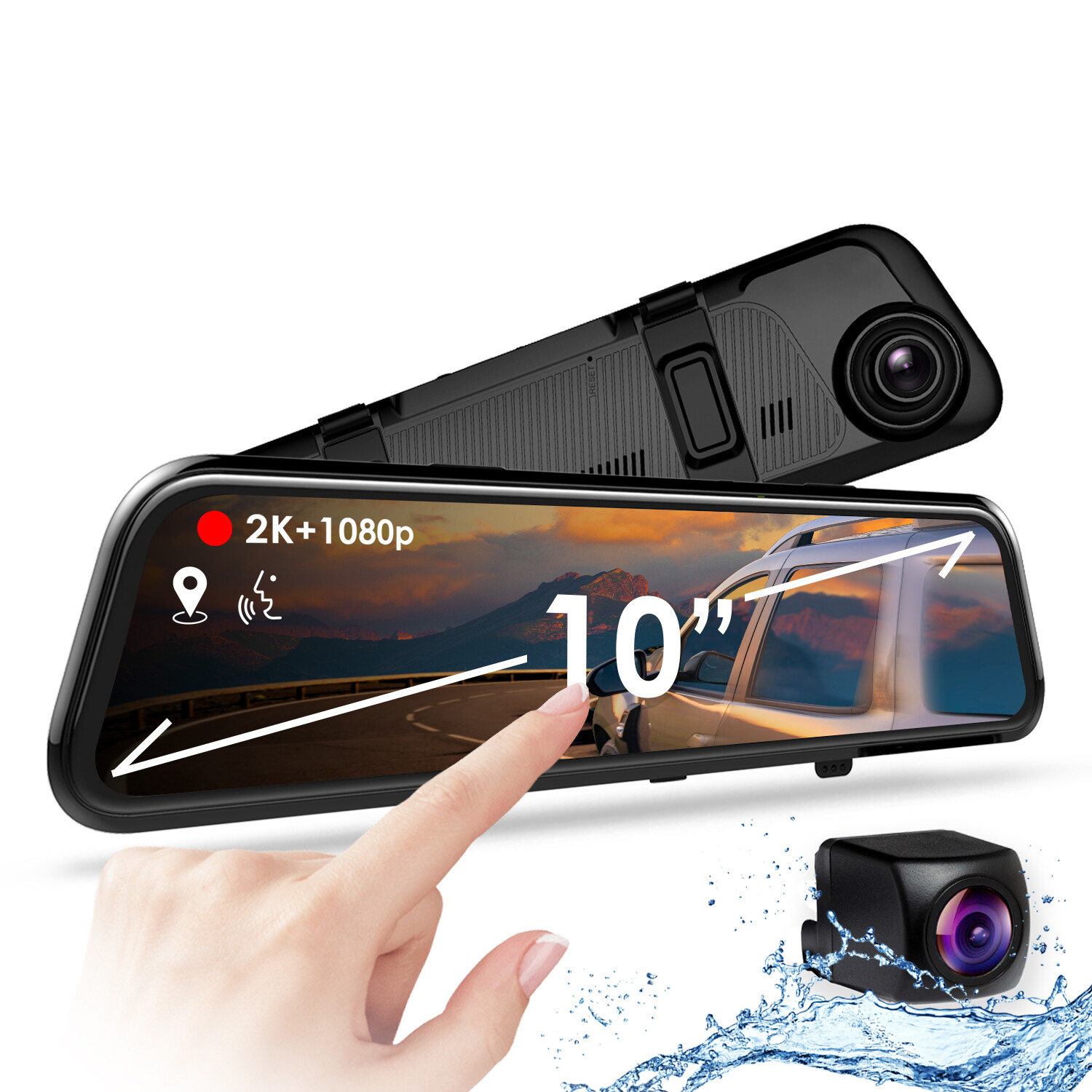
Build a reliable starting point.
Check the model label before choosing a guide or firmware.
Secure the mirror.
Fasten the rear straps around your existing mirror.
Prepare storage.
Class 10 / UHS-I or faster microSD, up to 256GB. Power off before changing cards.
Connect car power.
Use the supplied charger with a 12V outlet and Mini-USB connection.
Format on the touchscreen.
- Back up useful footage.Formatting deletes card contents.
- Stop recording → Settings → Format.Confirm the selection on screen.
- Save and review a test clip.Check the front and rear views before your next drive.
A swipe. A tap.
A clearer next step.
Make adjustments while safely parked.
Swipe left or right.
Swipe up or down.
Stop recording, then swipe right.
Recording and reversing.
Check each connection.
Rear camera cable
Connect the extension cable to the mirror unit’s rear-camera port.
Check a saved rear clipReverse trigger wire
The red wire connects to the reverse-light circuit for automatic backup-view switching.
Test while safely parkedFind your footage.
Keep what matters.
In playback, use “Front Ordinary video” to choose front, rear, locked videos or photos. Select a filename and tap its preview.
Confirm the accessory.
Then check the setting.
GPS is an optional accessory.
The GPS logger is purchased separately. It records speed and location for playback with Rexing’s GPS video player. Choose speed units under System Settings.
Ask for the correct GPS software →Plan engine-off recording.
Before buying a power kit, send support your exact camera model, firmware and connector photos. Ask which kit and parking settings match your unit.
Confirm compatibility before installationIf parked recording stops, check the power supply.
When a connected power kit has low-voltage protection, its cutoff can stop camera power to protect the vehicle battery. Tell support whether the camera works with the supplied car charger and whether the issue occurs only while parked. Use the settings specified for your exact kit.
Help starts with
the right detail.
A short description and a few photos can make your support request much easier to resolve.
Which guide should I use?
Use the M1 Pro PDF linked below. Verify the complete model name on your camera label; similar names do not establish compatibility.
Why is my recording missing or unreadable?
Keep the original card and files. Note any on-screen error, the card brand and capacity, and whether the issue affects one camera view or both. Try a short test clip after following the setup steps above.
Can I rely on a fixed recording time for my card?
Actual recording time depends on settings, available storage and protected files. Review the clips saved by your camera before relying on a duration estimate.
What should I check if the rear view has a problem?
Tell support whether there is no picture, no saved clip or no automatic reverse view. Include photos of the cable connection and installation.
How do I find the right firmware?
Use the firmware lookup below or contact support with the model label and current firmware version. Do not install a file based only on a similar model name.
What should I send to support?
Include the camera label, current firmware, power connection, card details and a short description. A sample clip or photo of the error helps show what you are seeing.
Your M1 Pro reference desk.
Need help with your M1 Pro?
Share your model label and the issue you are trying to solve.