
Ready by day.
Set for night.
Set up your H6’s day and night cameras, fine-tune motion capture and find your wildlife recordings.
Download H6 manual ↗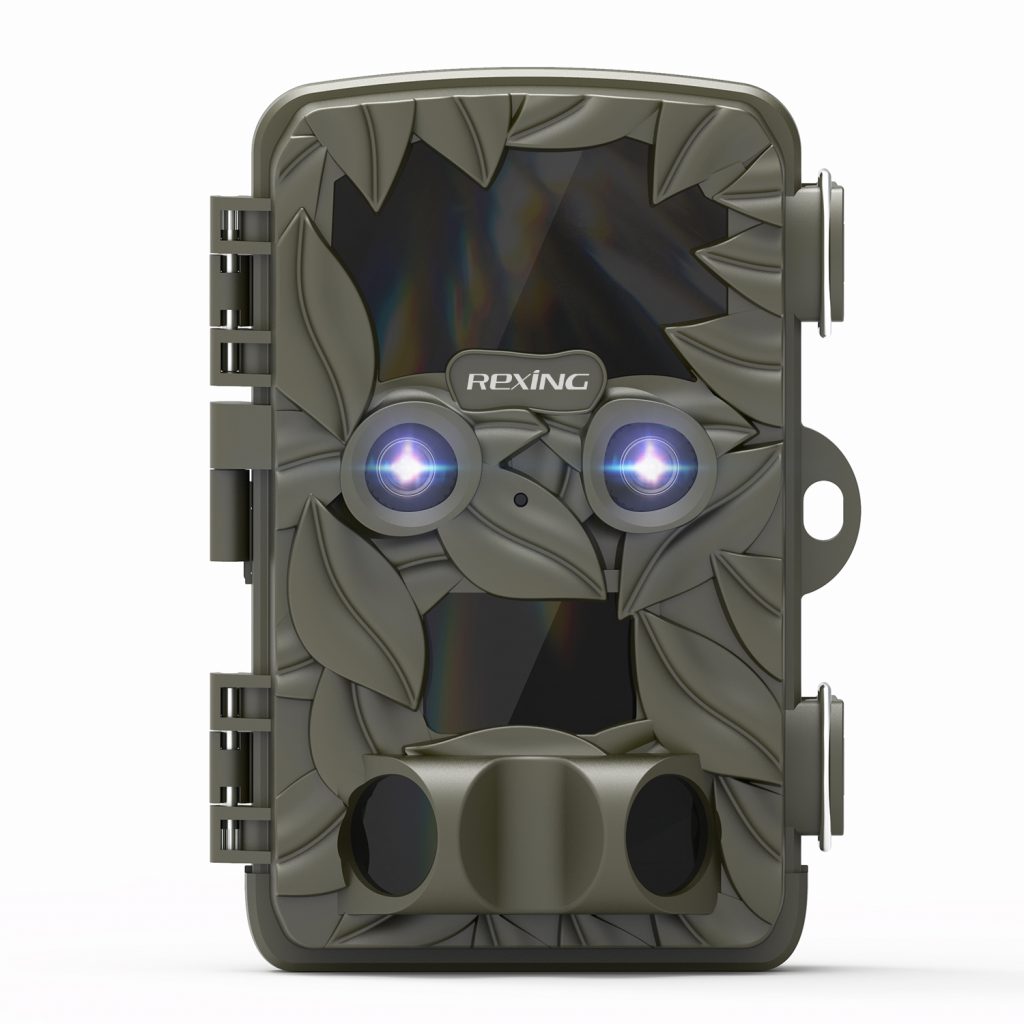
Three steps before the trail.
Prepare the power and storage, then use TEST to check your settings before leaving the H6 in position.
Install eight AA batteries.
With the camera OFF, open the housing and battery cover. Install eight 1.5V AA batteries, following the polarity markings, then secure the cover.
Prepare the microSD card.
H6 supports microSD cards up to 512GB. Insert the card in the marked direction. Back up any existing files before formatting it in the camera.
Set up in TEST.
Move the switch to TEST. Press MENU, browse with UP / DOWN, and use OK to enter or confirm. Press MENU to return. Set the date, time and capture mode.
Format in the H6, after backing up.
In TEST, open MENU → Format Memory Card. Formatting permanently deletes everything on the card.
Prepare and handle.
Turn the camera off before handling the memory card or replacing batteries.
Configure and review.
Change settings, take a test shot and play back your files. Select Photo or Video, then use SHOT for a manual capture.
Begin automatic capture.
Allow the 15-second countdown to finish. The screen and LEDs turn off, and the camera begins unattended operation.
Set each view separately.
H6 automatically selects its day or night camera according to ambient light. Each has its own photo and video resolution settings.
Day camera.
For daytime and brighter scenes, H6 captures color images. Use Day Photo Resolution and Day Video Resolution to choose the recording detail.
Night camera.
In darkness, the night camera and infrared LEDs work together. Black-and-white images are expected. Adjust Night Photo Resolution and Night Video Resolution independently.
For clearer night recordings.
Keep reflective signs and similar objects out of the frame when possible. Check battery power if long nighttime clips become unstable. Higher resolution and longer clips also use more storage, so avoid relying on a fixed “hours per card” estimate.
Aim first.
Then fine-tune.
A short walk test helps confirm the detection area before you switch to automatic operation.
- Mount and frame the scene.The manual suggests around 1–2 meters high for alignment. Secure the camera and point it toward the area you want to observe.
- Walk across the target area in TEST.Green indicates an enabled side sensor; red indicates the front sensor. Adjust the angle and distance, then repeat the test.
- Review the sensor settings.Enable or disable Side Motion Sensors and select Low, Middle or High sensitivity for your location. Test again after changing them.
- Switch ON and step away.Wait for the 15-second countdown. After each event, the camera returns to standby and follows the selected timing settings.
Three timing settings.
Shot Lag
Sets a pause between events, from 5 seconds to 60 minutes. A longer pause means fewer closely spaced captures.
Target Recording Time
Restricts activity to a daily start and stop time. Outside that window, the camera stays in standby.
Time Lapse
Normal takes photos at intervals. TL Video combines interval captures into a video. Time-lapse operation deactivates motion sensors.
set Time Lapse to OFF.
Find the moments.
Keep a copy.
Review recordings on the camera or copy them to a computer before deleting, formatting or reusing the card.
TEST → Playback.
Press Playback in TEST. Browse with UP / DOWN. OK plays or pauses video; MENU stops playback. Press Playback again to exit.
Copy from the card.
Switch OFF and remove the microSD card. Insert it into a compatible reader, connect to your computer and copy the photos and videos to a separate backup.
Look for MSDC.
Connect the supplied USB cable and turn the camera on. Its screen displays MSDC. Open the removable disk on your computer; recordings are in the DCIM folder.
Endless Capture changes what happens when storage fills.
When enabled, H6 loops recordings and deletes the earliest files as the card fills. When disabled, a full card stops recording. Copy anything important to a separate device first.
A clearer next step.
Check power, storage and mode first. Then use these H6-specific answers to narrow down the issue.
Ask Rexing support →Which memory card does H6 support?
The official H6 manual lists microSD cards up to 512GB. Back up existing files, then format the card in the H6 before first use. Insert or remove the card with power OFF.
Why are the daytime and nighttime settings different?
H6 has separate day and night cameras. The menu provides independent photo and video resolution settings for each. Day video options reach 3840 × 2160; night video options reach 1920 × 1080. Night infrared images are black and white.
How do I format the memory card?
Move the switch to TEST, press MENU and use UP / DOWN to find Format Memory Card. Press OK to enter and confirm your choice. Formatting permanently erases the card, so copy important files first.
Why does the screen turn off after switching ON?
This is normal. After the 15-second countdown, the screen and status LEDs switch off as H6 enters automatic operation. Use TEST for setup, manual capture and playback.
Why is H6 missing motion events?
Check the batteries and available card space first. Make sure the switch is ON, Time Lapse is OFF for motion-triggered use, and Target Recording Time includes the current time. Review Shot Lag and sensor sensitivity, then repeat a walk test in TEST mode.
What do the green and red lights mean during a walk test?
In TEST mode, green indicates detection by an enabled side motion sensor. Red indicates detection by the front motion sensor. Walk across the target area while adjusting the camera angle.
Why are night pictures black and white or too bright?
Black-and-white infrared pictures are normal at night. Reflective objects such as signs can cause overexposure. Reposition the camera if needed. The manual also warns that low battery voltage can make long nighttime video recording unstable.
What happens when the card fills up?
With Endless Capture enabled, the camera loops recordings and deletes the earliest files as the card fills. With it disabled, a full card stops recording. Back up important recordings before relying on loop capture.
How many hours fit on a memory card?
Recording time varies with resolution, clip length, activity and other settings. There is no single reliable hour estimate for every setup. Check remaining capacity and back up files regularly, especially when using higher daytime resolution.
How do I check the firmware version or get more help?
In TEST, open MENU and look for Version. Share that version, your card capacity and the relevant setting with Rexing support. Use only firmware confirmed for your exact H6 model.
Resources for your H6.
Still need a hand?
Share your H6 firmware version, memory card capacity and a description of the issue.