
Set the scene.
Capture the visit.
Prepare your H3, schedule its MP3 sounds and find the photos and videos from your next wildlife visit.
Download H3 manual ↗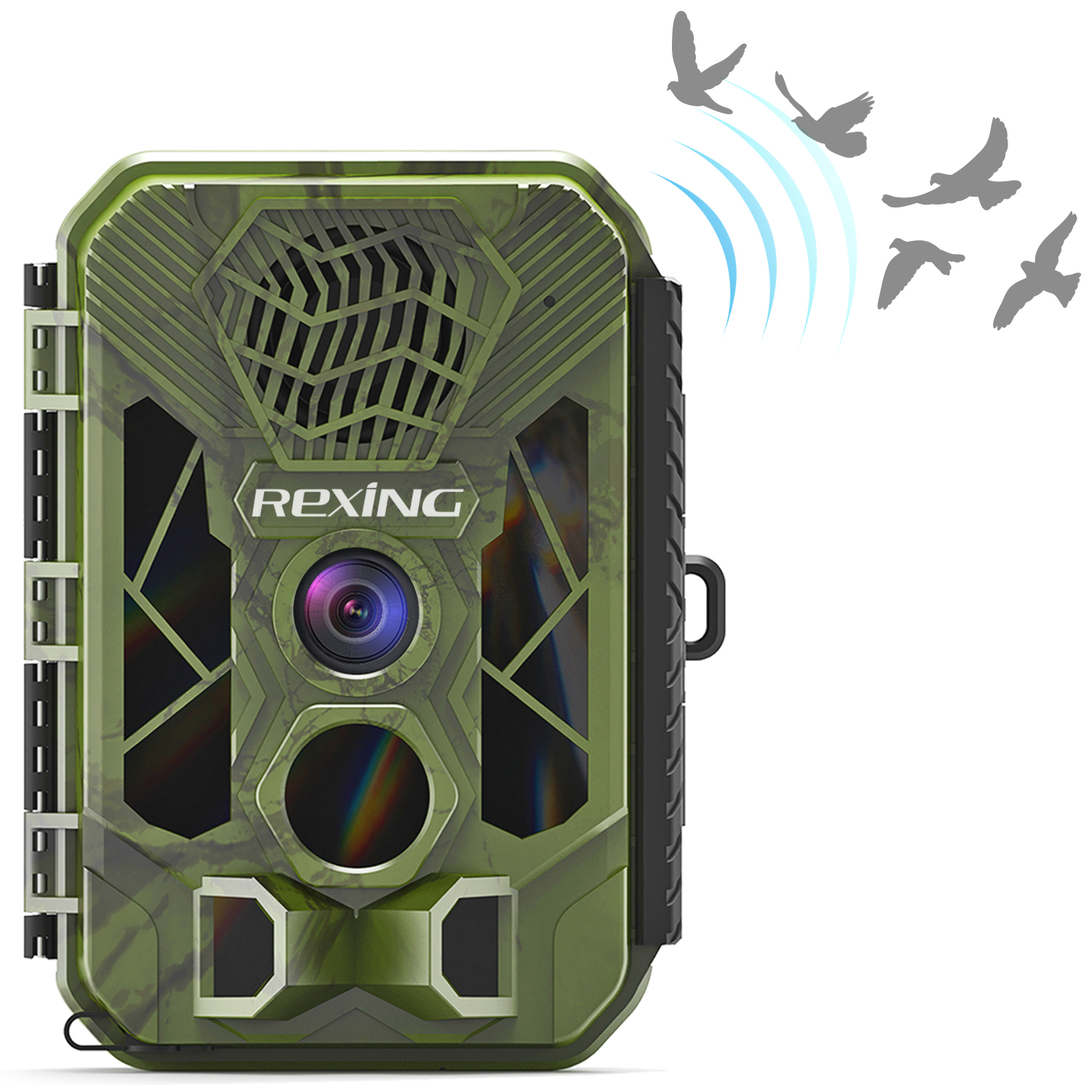
Ready for the field.
Use the H3 model guide for storage, power and controls. Set up and test the camera before leaving it unattended.
Install twelve AA batteries.
With power OFF, open the housing and install twelve 1.5V AA alkaline batteries following the polarity markings. Secure the battery cover.
Prepare a microSD card.
The H3 manual supports cards up to 512GB, Class 6 or faster. Insert the card according to the markings. Copy any existing photos, videos and MP3 files before formatting.
Configure in TEST.
Move the switch to TEST and press MENU. Use UP / DOWN to select a menu or option and OK to enter or confirm. MENU returns to the previous menu. Set the date, time and capture mode.
Formatting also removes your sound files.
Use MENU → Format Memory Card after backing up files. Formatting erases the entire card, including its MP3 folder. Restore your sound files and reselect playback content before using timed sounds.
Put sound on a schedule.
H3 supports up to eight scheduled playback time periods. Prepare the audio files and confirm the camera clock first.
- Prepare the MP3 folder.Place MP3 files in the card’s MP3 folder. Use English letters or numbers in the filename, such as Birds01.mp3.
- Open MP3 Setting in TEST.Use MENU → MP3 Setting, or the OK / Sound shortcut described in the manual. Turn it on and set the start and stop times.
- Select and test the sound.Press OK to choose the audio source and test playback. Use MENU to return. MP3 Volume offers levels 1–5.
- Switch ON.Allow the 15-second countdown to finish. The sound plays during its scheduled time window, and normal motion-triggered capture continues.
On that page, choose “Download Bird Calling File”.
Check other timers when enabling scheduled sound.
The manual states that timed playback disables time-period monitoring and timer photography. It does not stop normal motion-triggered shooting while the sound plays. Review your capture settings whenever you change the playback mode.
Match the settings
to the scene.
Choose Photo, Video or Photo & Video. The H3 manual lists photo settings up to 20MP and video up to 2688 × 1520 at 20 fps.
Motion capture.
Set the side sensors and PIR sensitivity for your location. Remove the protective tape from the PIR sensor. Walk across the target area in TEST: blue indicates a side sensor; green indicates the front sensor.
Shot Lag pauses new captures between events. The manual suggests mounting around 1–1.3 m high; adjust the angle to suit the subject.
Time-lapse capture.
Normal Time Lapse takes photos at your selected interval. TL Video turns interval captures into a video. Time-lapse operation deactivates the motion sensors.
Target Recording Time limits activity to a daily window. Check both settings if expected motion events are missing.
Prepare and handle.
Power off before handling the memory card, changing batteries or transporting the camera.
Configure and preview.
Adjust settings and review files. Press Photo or Video to select a mode, then SHOT for a manual test capture.
Start unattended use.
After the 15-second countdown, the screen and lights turn off. The camera enters standby and captures according to your saved settings.
Keep the moments
that matter.
Copy important recordings and your MP3 library before formatting or removing files.
TEST → Playback.
Press Playback in TEST, then browse with UP / DOWN. OK plays or pauses video; MENU stops playback. Press Playback again to exit.
Copy from the card.
Switch OFF, remove the microSD card and connect it to your computer with a compatible card reader. Copy your photos, videos and MP3 folder to a separate backup.
Look for MSDC.
Connect with the supplied USB cable and turn the camera on. The manual says the screen shows MSDC and the computer recognizes a removable disk. Captures are stored in DCIM.
Check the essentials.
Start with power, card space and the camera mode. For sound issues, check the MP3 folder, clock and playback schedule.
Ask Rexing support →Which memory card does H3 support?
The H3 manual specifies microSD cards up to 512GB, Class 6 or faster. Format the card in the camera before use after backing up your recordings and MP3 sound files. Switch OFF before handling the card.
How many batteries does H3 need?
Install twelve 1.5V AA alkaline batteries following the polarity markings. Use a matching set of fresh batteries. Check battery power if night video becomes unstable or the camera stops operating.
Why is the screen dark after I switch ON?
After the 15-second countdown, the screen and indicator lights turn off and the camera enters unattended operation. Use TEST to change settings, review recordings or take a manual test shot.
Why are my bird-call sounds missing?
Sound files belong in the MP3 folder on the memory card. Formatting the card also removes these files. Restore your backed-up MP3 files, then reselect the scheduled playback content after adding or deleting sounds.
What names and formats work for custom sound files?
Use MP3 audio files. Keep the filename stem to English letters or numbers, for example Birds01.mp3. After adding or deleting a sound, reselect the playback content in MP3 Setting.
Does scheduled sound playback stop motion capture?
The manual says normal sensing and triggered photo/video capture continue while scheduled sound plays. However, enabling timed playback disables the time-period monitoring and timer-photography functions described in the manual. Check these settings when changing modes.
Why is the camera missing motion events?
Check battery power, available card space and the ON switch position. Remove protective tape from the PIR sensor. Time Lapse deactivates motion sensors; Shot Lag pauses capture between events; Target Recording Time limits active hours.
What happens when the card fills up?
With Endless Capture enabled, the manual says the earliest files are deleted as the camera cycles through recordings. If loop capture is not enabled, a full card stops recording. Back up important files before relying on loop recording or formatting.
How do I review video on the camera?
Move the switch to TEST and press Playback. Browse with UP / DOWN, press OK to play or pause a video, and MENU to stop playback. Press Playback again to leave the review screen.
What if I forget the password or need firmware?
Contact Rexing support with the exact H3 model and firmware version. The manual describes firmware recovery for a forgotten password; use only files confirmed for your device.
Resources for your H3.
Still need a hand?
Share your H3 firmware version, card capacity and the capture or sound setting involved.