
STEP 01
Charge with power off.
Connect the USB cable to the recommended 5V / 2A power adapter. Disconnect the cable when the battery is full. The built-in battery is 4,000mAh.
Cart
Your cart is empty
Your guide to charging, underwater lighting, recording and playback. Get your FC1 ready before heading to the water.
Download FC1 manual ↗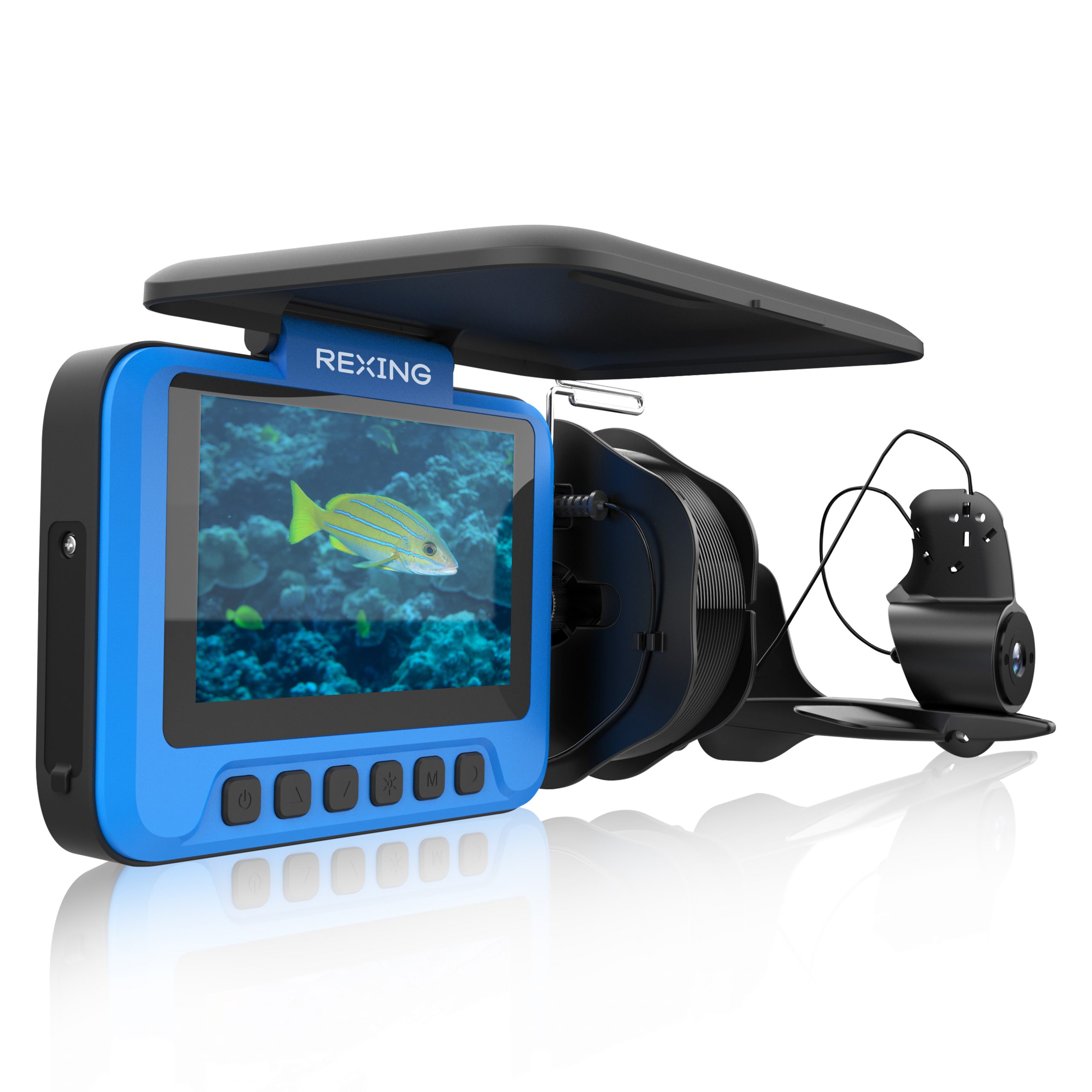
Prepare the display and camera on a dry surface before lowering the camera into the water.
Connect the USB cable to the recommended 5V / 2A power adapter. Disconnect the cable when the battery is full. The built-in battery is 4,000mAh.
Open the flip cover and make sure the camera’s video plug is firmly inserted into the video input port.
Long-press Power to turn the display on. Confirm the camera image is visible before use. Long-press Power again to switch off.
These are separate controls: one lights the underwater scene; the other adjusts the display you are looking at.
Check the live view after changing the light or display settings so you can see whether the image meets your needs.
Press Brightness once to bring up the lighting control. Use Up to cycle the available infrared, warm fill-light and image-mode options shown on the screen.
Press Brightness twice. Use Up or Down to adjust the screen across nine brightness levels.
In video or photo mode, use Up and Down to zoom in or out, up to 4× digital zoom.
FC1 supports video and still photos. Use a TF/microSD card up to 32GB, as specified in the manual.
Briefly press Power / Mode to select photo mode. Preview the scene and press OK to capture a still image.
You can also choose Menu → Record, then Record Video or Take Photos. Setup contains the photo Resolution and video Movie Size settings.
Photo: JPG · Video: AVIOpen Menu → Setup → Format and confirm only after copying important files. Formatting deletes all files, including protected ones. Memory Info shows storage capacity.
To delete a selected file, press Power and confirm the “Delete this file” prompt only when you are ready to erase it.
The host’s IP54 rating does not make it suitable for immersion. Keep the display, ports and charging connections above water.
Do not submerge the display unitThe manual rates the camera for diving to 25m and lists a supplied cable length of 20m. Keep the cable away from propellers and sharp objects.
Supplied cable: 20 metersStart with battery level, the video connection and the active mode.
Ask Rexing support →No. The manual rates the host/display IP54; it is not designed for immersion. Only the underwater camera is rated for diving to 25 meters. The supplied cable is 20 meters long. Keep the display, ports and power connections above water.
The FC1 manual specifies a TF/microSD card up to 32GB. Back up important files before using Setup → Format, because formatting deletes all files, including protected ones.
Check that the camera’s video plug is firmly seated in the video input port. Check the battery level and lens view. If the image is still missing, contact Support with a photo of the connection and the symptoms.
Press Brightness twice to display the brightness level. Use Up or Down to choose one of nine levels. This adjustment is separate from the camera’s underwater lighting.
In My Files → Video file, press OK to play. Press Brightness to pause playback and OK to stop. Up and Down control fast forward and rewind.
Check Setup → Power Save. The available settings are 1 minute, 3 minutes, 5 minutes or Off. Also check the battery indicator and recharge when it shows fewer than two bars.
Open Menu → Setup → Date and Time. Briefly press Power to move between fields, and use Up or Down to adjust the value. Follow the menu controls to return and confirm the setting.
Connect the FC1 to your computer using the USB cable and open the cover. The screen should show “Connecting the computer”. Open the removable drive and copy your files. Videos use AVI format and photos use JPG.
Share your model label, Version Info and a description of the issue.
Register your product ↗Based on the FC1 user manual linked from Rexing’s official support directory. Menu labels may vary by version.