
STEP 01
Mount the screen
Clean and dry the mounting surface, then secure the supplied mount. Position the display where you can see it without blocking your road view or airbags.
Cart
Your cart is empty
Get your 7-inch multimedia display ready for the road. Connect your phone, choose your audio, and enjoy your media when parked.
Download user manual ↗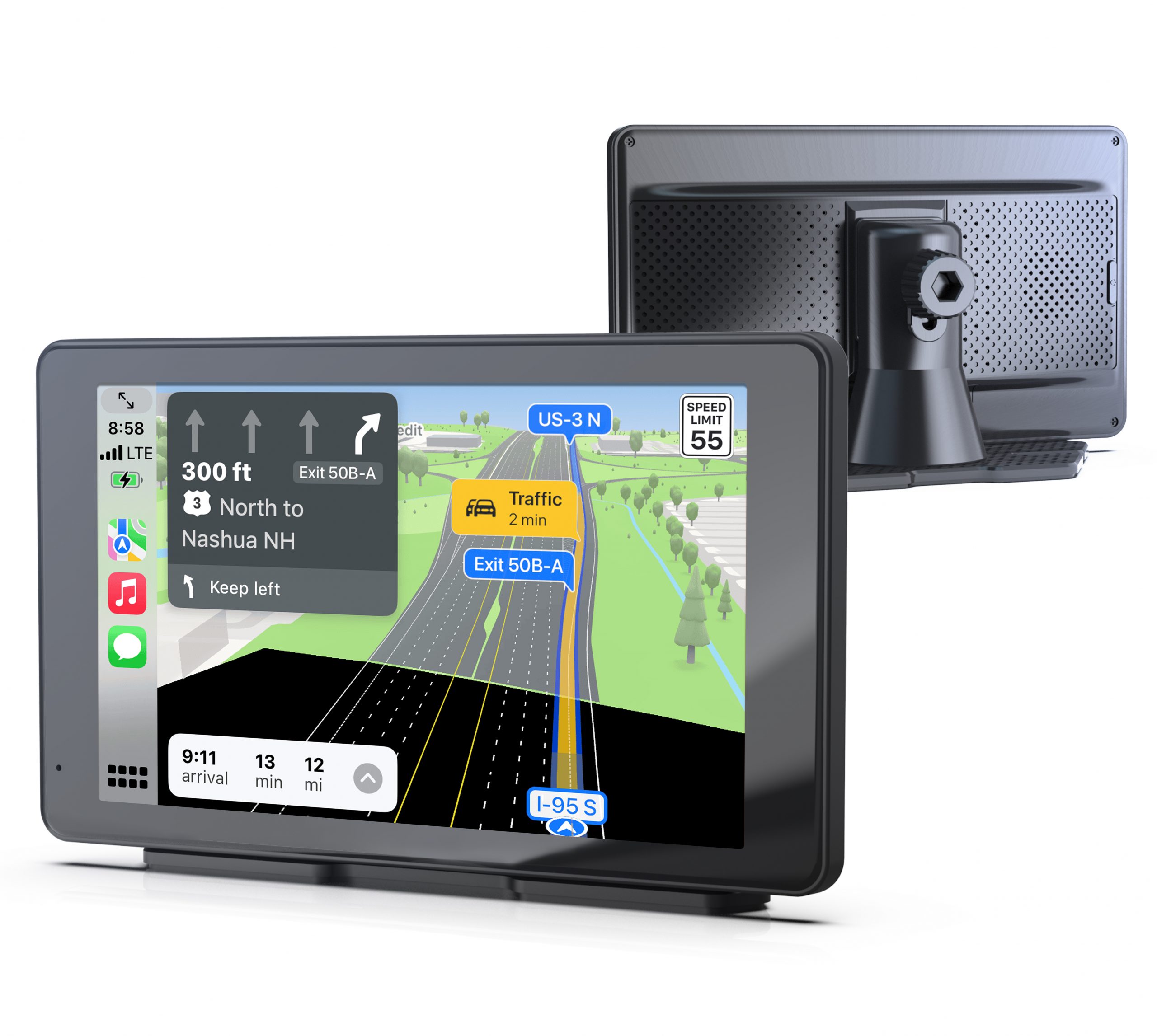
Complete the initial setup while safely parked.
Clean and dry the mounting surface, then secure the supplied mount. Position the display where you can see it without blocking your road view or airbags.
Connect USB-C to the CPStream-7 and plug the vehicle adapter into the car’s power socket. Route the cable clear of pedals and moving parts.
Select CarPlay for iPhone or Android Auto for a compatible Android phone. Enable both Wi-Fi and Bluetooth on your phone before pairing.
Keep Wi-Fi and Bluetooth on. Use the Bluetooth name displayed on your own unit, such as T86B-XXX.
Open Audio Output on the home screen. Choose the route that matches your car’s stereo.
It works with CarPlay and Android Auto, using a direct Bluetooth connection from your phone to your car stereo. For SD media or screen casting, choose Speaker, FM, or AUX.
Listen through the CPStream-7’s built-in speaker. Start here if you want a quick check that audio is playing.
In CarPlay or Android Auto, connect your phone directly to your car stereo’s Bluetooth. Control volume using the vehicle’s audio controls.
Pick an unused FM frequency on the display and tune the car radio to exactly the same frequency. Keep the supplied vehicle charger connected; it is needed for the FM signal.
Connect the included AUX cable from the display to the vehicle’s AUX input. Select AUX on the display and the correct AUX source on your car stereo.
Use navigation and supported driving apps on the road. Watch movies and mirrored video only while safely parked.
Copy supported files to an SD card, insert it in the display, and select Media Player. Use the on-screen controls to play, pause, skip, or change the playback order.
Select Bluetooth Music on the display first, then pair your phone with the device name shown on screen. Use its previous, play / pause, and next controls.
Start with the mode you are using, then check the matching connection and audio settings.
Still need help? Contact support →Check that the supplied charger is fully seated in the vehicle socket and the USB-C plug is secure. Confirm that the socket has power and check the vehicle socket fuse if needed. Contact support if the unit still does not start.
Enable Wi-Fi, Bluetooth, and Siri on your iPhone. Confirm that CarPlay is selected on the display. Restart the phone; if necessary, remove the saved connection in Settings → General → CarPlay, clear the display’s connection records, and pair again.
Confirm that your phone supports Android Auto and that its software is current. Turn on Wi-Fi and Bluetooth, select Android Auto on the display, and accept the phone’s setup prompts. Check whether a VPN is interfering, then restart and reconnect if needed.
Check Audio Output, the car stereo source, and volume. For BT Audio, the phone must also connect to the car stereo. For FM, both frequencies must match and the supplied charger must be connected. For AUX, check both cable ends and select AUX on the stereo.
Check the file format and video codec. The manual lists F4V, MOV, MP4, and TS video with AVC / H.264 encoding, plus MP3 and WAV audio. Convert an unsupported file to a listed format and codec before trying again.
Check the Screen Saver setting. It can switch the screen off after 10 seconds, 30 seconds, or 1 minute, or be disabled. Press the power button to wake the screen. Also check brightness and the auto-dimming schedule.
Use Driving Position to change the left / right shortcut layout in CarPlay. Assistive Touch can be switched on or off. The reminder-tone setting controls startup, touch, and button sounds.
Check the firmware version in Settings and include it when contacting support. Ask Rexing to confirm any model-specific update before installing it. A factory reset restores the display’s settings, so try connection checks first.
Have your model, order details, phone model, and firmware version ready.
Based on the CPStream-7 user manual, revision 12182025. Menu labels can vary by firmware version.