
STEP 01
Mount the screen
Clean and dry the dashboard before securing the mount. Position the screen and front lens so they do not obstruct your view. Secure the rear camera and route its cable clear of airbags and moving parts.
Cart
Your cart is empty
Set up your CPDuo-9, pair your phone, and bring sound to your car's speakers. Clear help for every connection.
Download user manual ↗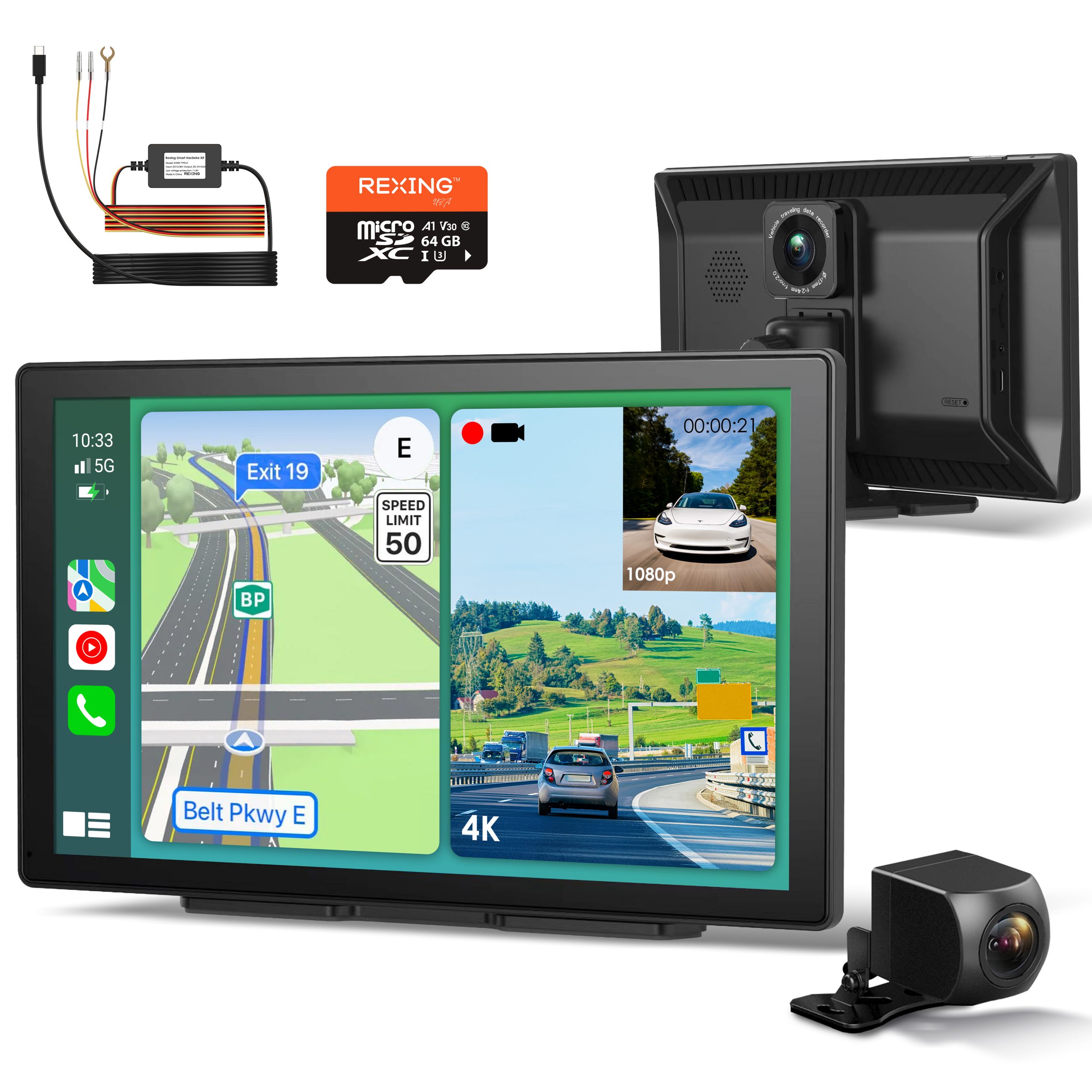
Complete setup while parked, then check both camera views before your first drive.
Clean and dry the dashboard before securing the mount. Position the screen and front lens so they do not obstruct your view. Secure the rear camera and route its cable clear of airbags and moving parts.
Connect the supplied power adapter to your vehicle’s power socket and the unit’s USB-C port. Connect the rear camera to its dedicated port. Check that both camera images appear.
Insert a Class 10 / UHS-3 or higher microSD card while the unit is off; use a 32GB–256GB card. The documented package includes a 64GB card. Power on, open the MENU / Settings icon, choose the System tab, then Format. Save important files first—formatting erases the card.
Turn on both Bluetooth and Wi-Fi on your phone. Keep it near the screen during initial pairing.
Open Audio Output on the home screen and select the method that matches your car. Phone pairing and speaker output are separate setup steps.
Play audio through the CPDuo-9’s own speaker. This is the simplest way to check that sound is working.
While using CarPlay or Android Auto, connect your phone to the car stereo’s Bluetooth. Adjust playback volume with the vehicle’s audio controls.
Choose an unused FM frequency on the CPDuo-9, then tune your car radio to exactly the same frequency. If you hear interference, choose another unused channel on both.
Connect the screen’s AUX port to your car’s AUX input with an AUX cable. Select AUX on the unit and the corresponding source on the car stereo, then adjust volume in the car.
Use Wi-Fi Video when you want to access recordings on your phone.
Parking Monitor needs the compatible Rexing FM Smart Hardwire Kit installed correctly. Check your package before ordering accessories.
The Best Buy version's box list includes an FM Smart Hardwire Kit. The manual identifies the compatible kit by UPC 810046601112. Connect it as directed before enabling Parking Monitor; do not enable this function using only the standard car charger.
Hardwire installation guidance →With the compatible kit, the unit switches to parking mode when the engine turns off and returns to normal recording when it starts. The manual recommends High gravity-sensing sensitivity for parking events, and Low when parking monitoring is not in use.
Impact / vibration detectionThe kit protects the vehicle battery by cutting power at its low-voltage limit. When power is cut, the camera cannot wake or record parking events. Frequent triggers can use more battery power; restore battery charge and check the kit instructions without bypassing the protection.
Start with the connection or function that needs attention.
The CPDuo-9 manual describes its 4K output as using 2K upscaling. Available Record resolution options depend on the unit. Check the Camera settings and your current firmware rather than assuming every option is native 4K.
Choose Split screen mode in Settings while connected through CarPlay or Android Auto. The manual describes the phone interface on one half and the front camera view on the other. This feature is specific to CarPlay / Android Auto mode.
No. The manual states that older locked files can be overwritten when the locked-file allocation fills. A 64GB card holds up to 80 locked clips in the documented configuration. Download important footage promptly, even if it is marked locked.
Keep both Wi-Fi and Bluetooth enabled, confirm Siri is on, and allow extra time for the first connection. Restart the iPhone. If needed, remove the saved vehicle under iPhone Settings → General → CarPlay, clear the unit’s old connection records, then pair again.
Confirm that your Android phone supports Android Auto and that the phone and related apps are up to date. Keep Wi-Fi and Bluetooth enabled, disconnect a VPN if one is active, restart the phone, and try pairing again.
The CPDuo-9 manual specifies Rexing Connect for Wi-Fi Video. Open that mode on the screen and use its QR code and connection details. CarPlay and Android Auto serve a different purpose from downloading camera footage.
Power off and check the matching rear camera and cable connections. If an image appears with incorrect colors or format, check Camera Format in Settings against the installed camera. The manual warns that an incorrect camera-system selection can cause abnormal images.
Check Audio Output first. For BT Audio, your phone must also connect to the car stereo. For AUX, select the correct stereo input. For FM, match the frequency on both devices and use a channel without a local station. Adjust the car stereo volume.
Check the vehicle power socket, supplied power cord, and connector seating. The manual also identifies a damaged cord or blown power-cord fuse as possible causes. Contact support if the unit still will not start.
Tap the brightness icon on the sidebar and slide left or right to adjust. Auto-dimming in Settings controls the dimming schedule. Keep the screen readable without making it distracting at night.
Wait for startup to finish before using the screen. Avoid sharp objects. If the screen is damaged or remains unresponsive after restarting, contact support with the model and issue details.
Share your CPDuo-9 model, phone model, and the connection mode causing trouble.
Based on the official CPDuo-9 manual, revision 05132025, for the Best Buy version. Follow the connection details displayed on your own unit; menu options may vary by version.